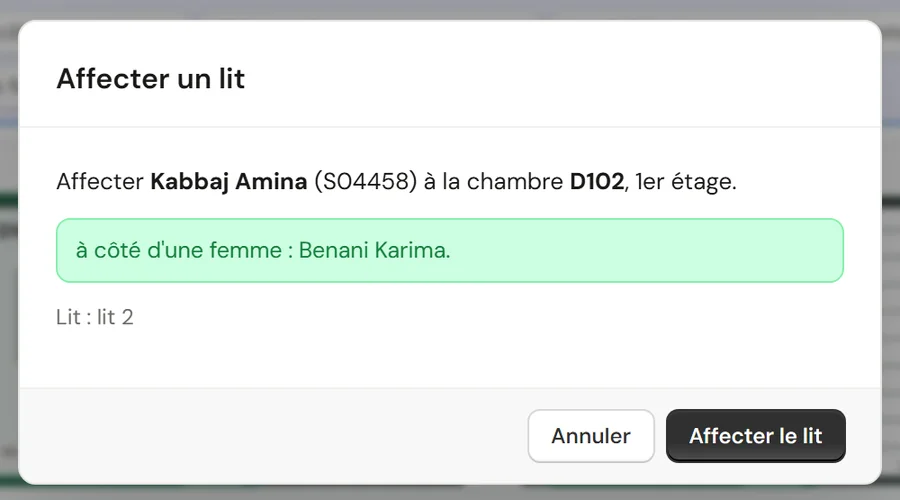
Confirm before assigning
The window names the patient, the stay, the room, the floor and the roommate. One click on “Assign the bed” and it is done.
Who it's for
Private clinicsFront desk, care and billing on one fileClinic groupsEach facility, or all of them togetherLabs and imagingA portal to receive and return testsThe labs' portal
Your labs and imaging centres receive orders, scan samples and upload results in the same system.
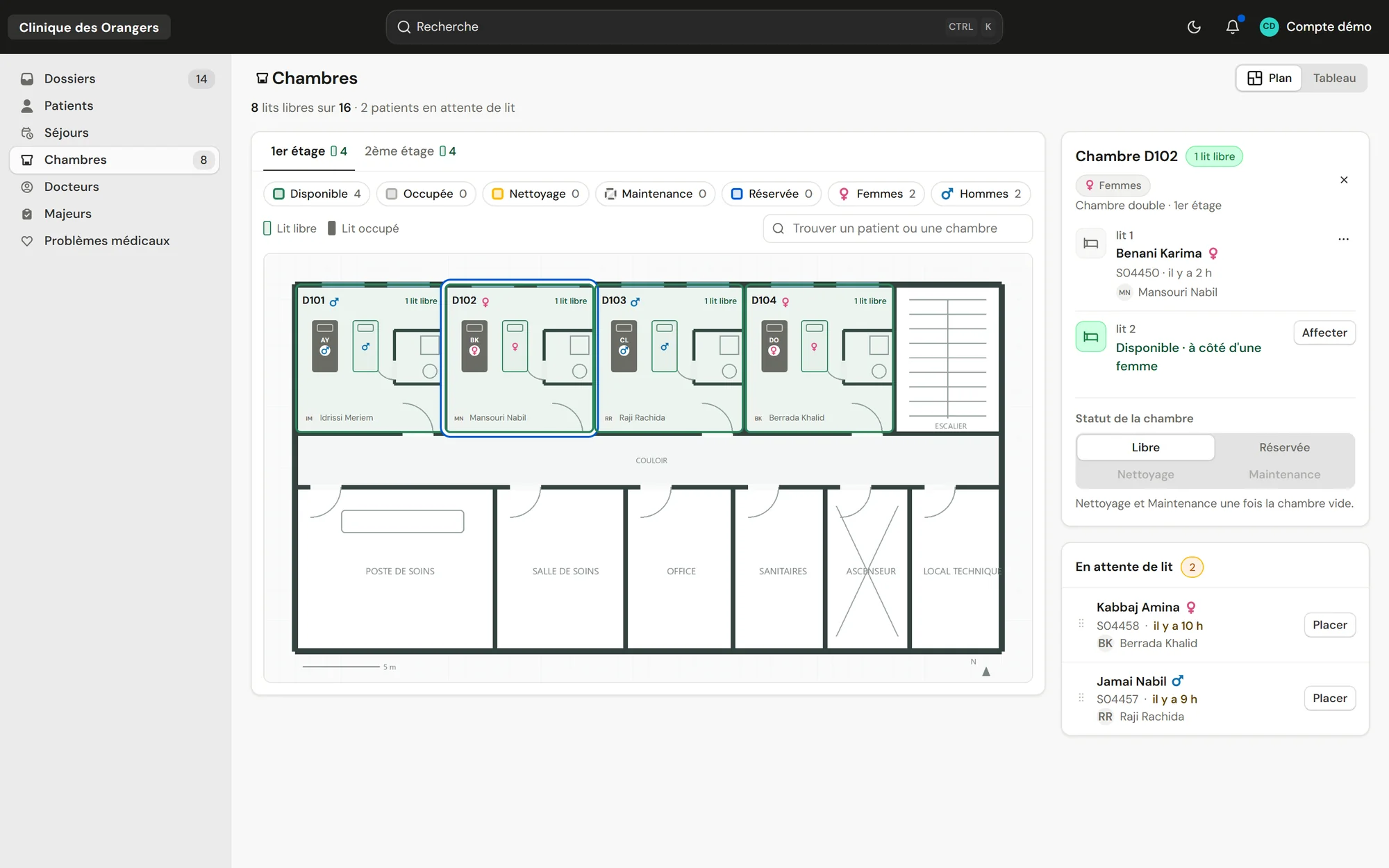
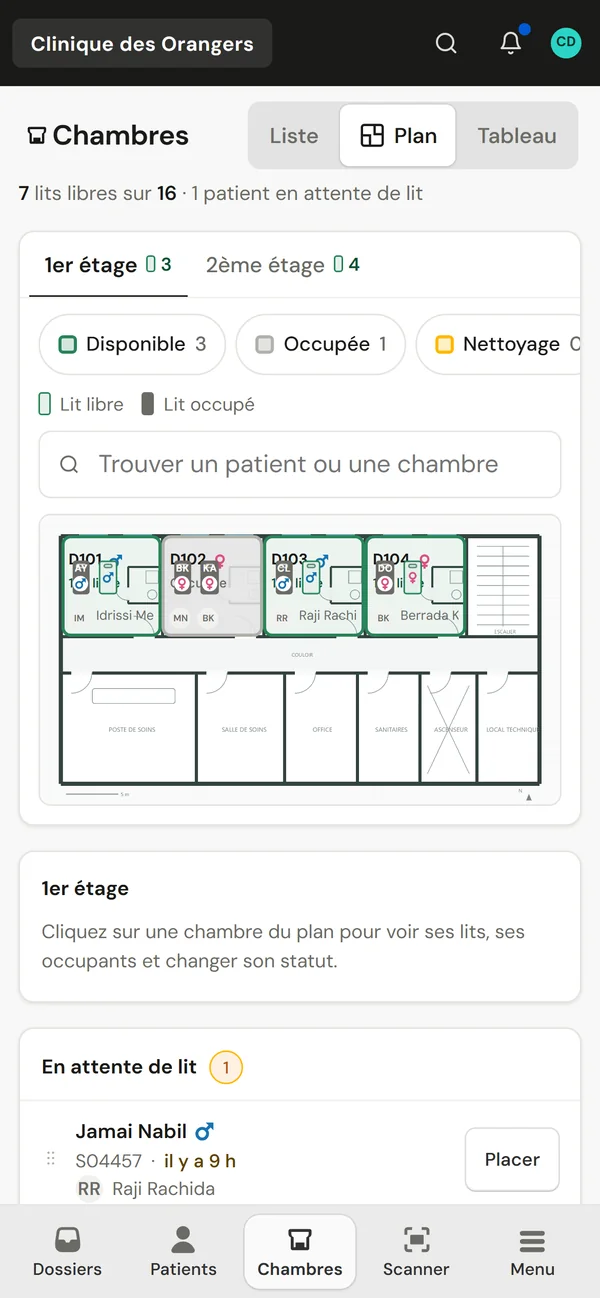
See the portalThe room plan shows each floor as it really is: the clinic's own floor plan in the background, rooms and beds in their places, free or occupied. Next to it, the patients waiting for a bed, with how long they have waited and their doctor.
 1
2
6
3
4
5
1
2
6
3
4
5
Demo clinic, made-up patients. The floor plan is a demo drawing.
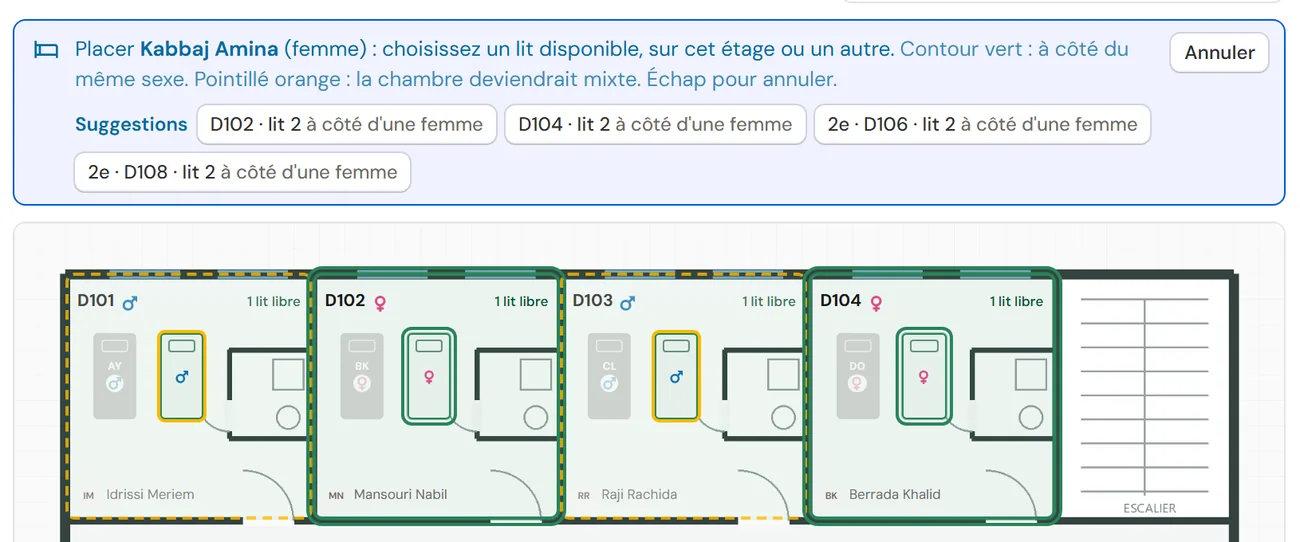
Green outline A free bed next to someone of the same sex. Suggested first.
Empty room Suggested next, when no same-sex roommate has a free bed.
Dashed orange The room would become mixed. It is allowed, and the confirmation says so.
The window names the patient, the stay, the room, the floor and the roommate. One click on “Assign the bed” and it is done.

One click on a room opens its beds, their occupants, the stay number, since when and the doctor. The room's status is changed here.
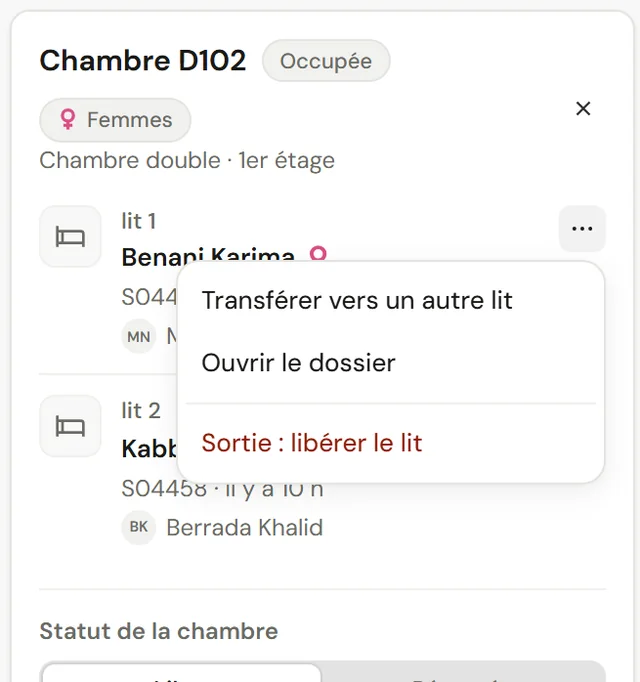
A bed's menu moves the patient to another bed or discharges them. A discharge frees the bed and closes the stay, after confirmation.
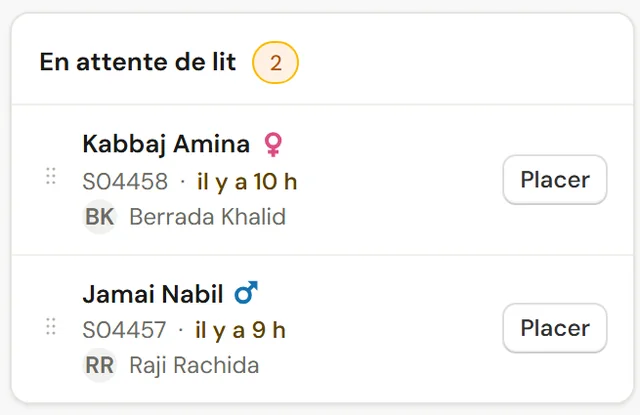
Every admitted patient waits here, with the stay number, the wait and the doctor, until they are placed.
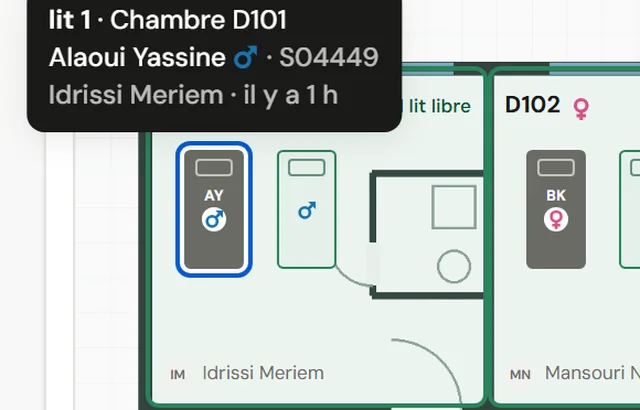
Hovering over a bed shows who is in it, the stay, the doctor and since when, without opening anything.
When a hospital stay is admitted, the head nurse gets a notification, even with the app closed. The lock screen never shows the patient's name.
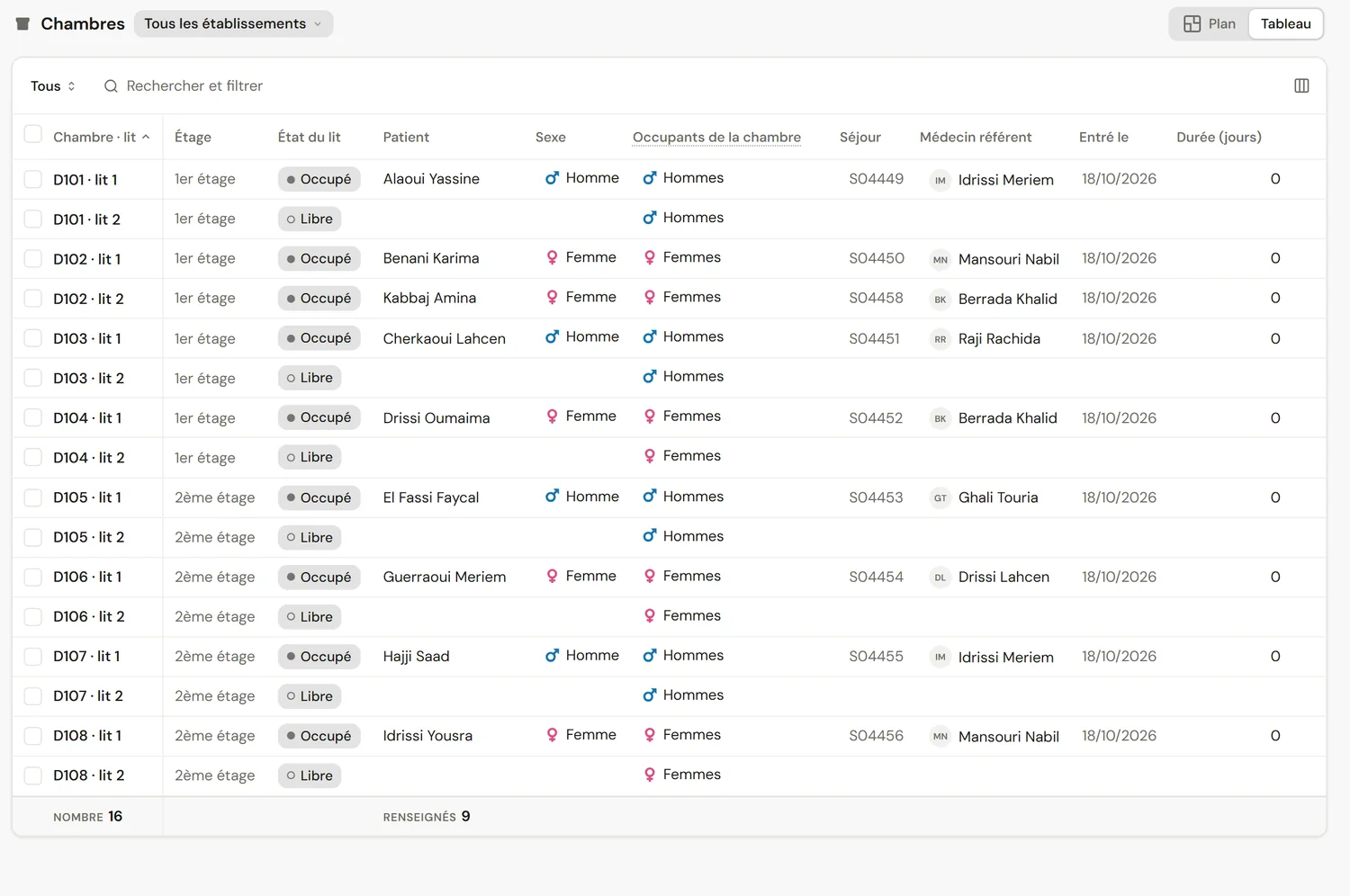
The table follows the same rules as the other lists: search, filters, sorting, columns to choose, and a total at the bottom. One click switches between the plan and the table.
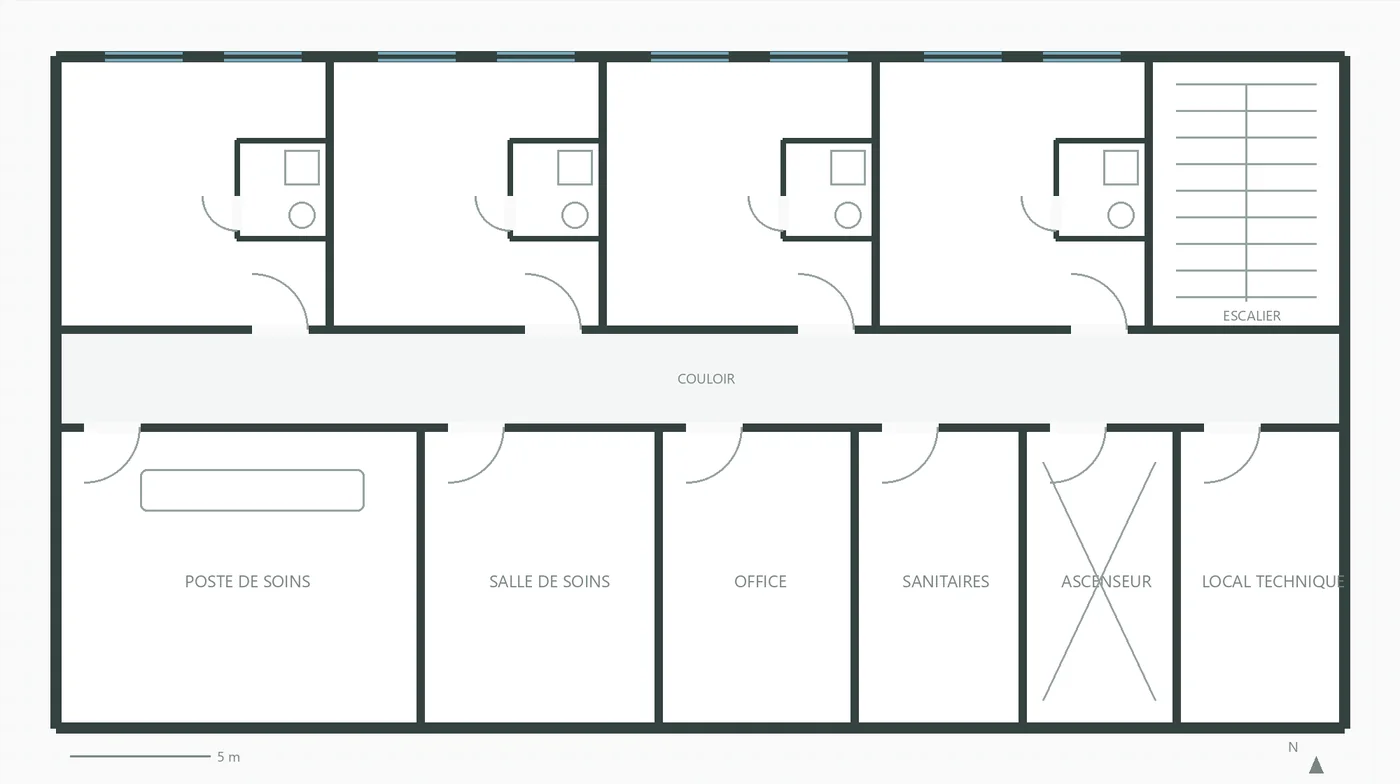
A PNG, JPG or WebP image, or a PDF the browser converts. Without a plan, a grid will do.
Each room is a rectangle laid on the plan. Guides line it up with its neighbours.
Beds move and rotate as in the real room, and carry the ward's names: bed 1, door side, window side.
Changes stay as a draft until “Save”. An occupied bed cannot be removed, and a room always keeps at least one bed.
| Situation | What happens |
|---|---|
| One bed for two patients | Impossible. A bed holds one patient, and a stay occupies one bed. |
| Room being cleaned or under maintenance | No placement until the status changes. |
| Reserved room | Only the patient who reserved it can be placed there. |
| Roommate of the other sex | Flagged in orange and recalled at confirmation, never blocked. |
| Transfer | The old bed closes and the new one opens in one step, after confirmation. |
| Discharge | The bed is freed and the stay closed, after confirmation. |
Yes. The plan flags it in orange and the confirmation recalls it, without forbidding it: the decision stays with the head nurse.
The discharge frees the bed and closes the stay, after confirmation. The room can then be set to cleaning.
Each room has its own beds, named as on your ward. Its capacity is simply the number of active beds.
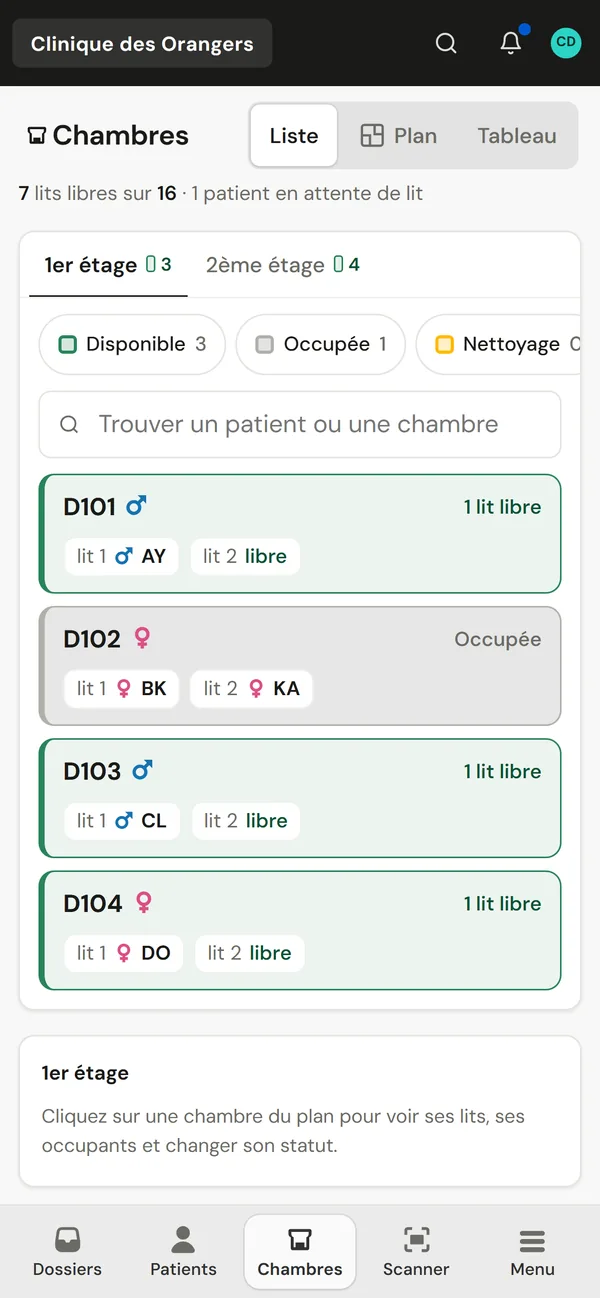
Rooms show as tiles meanwhile. A grid also lets you draw rooms without an image.