The information system for private clinics in Morocco

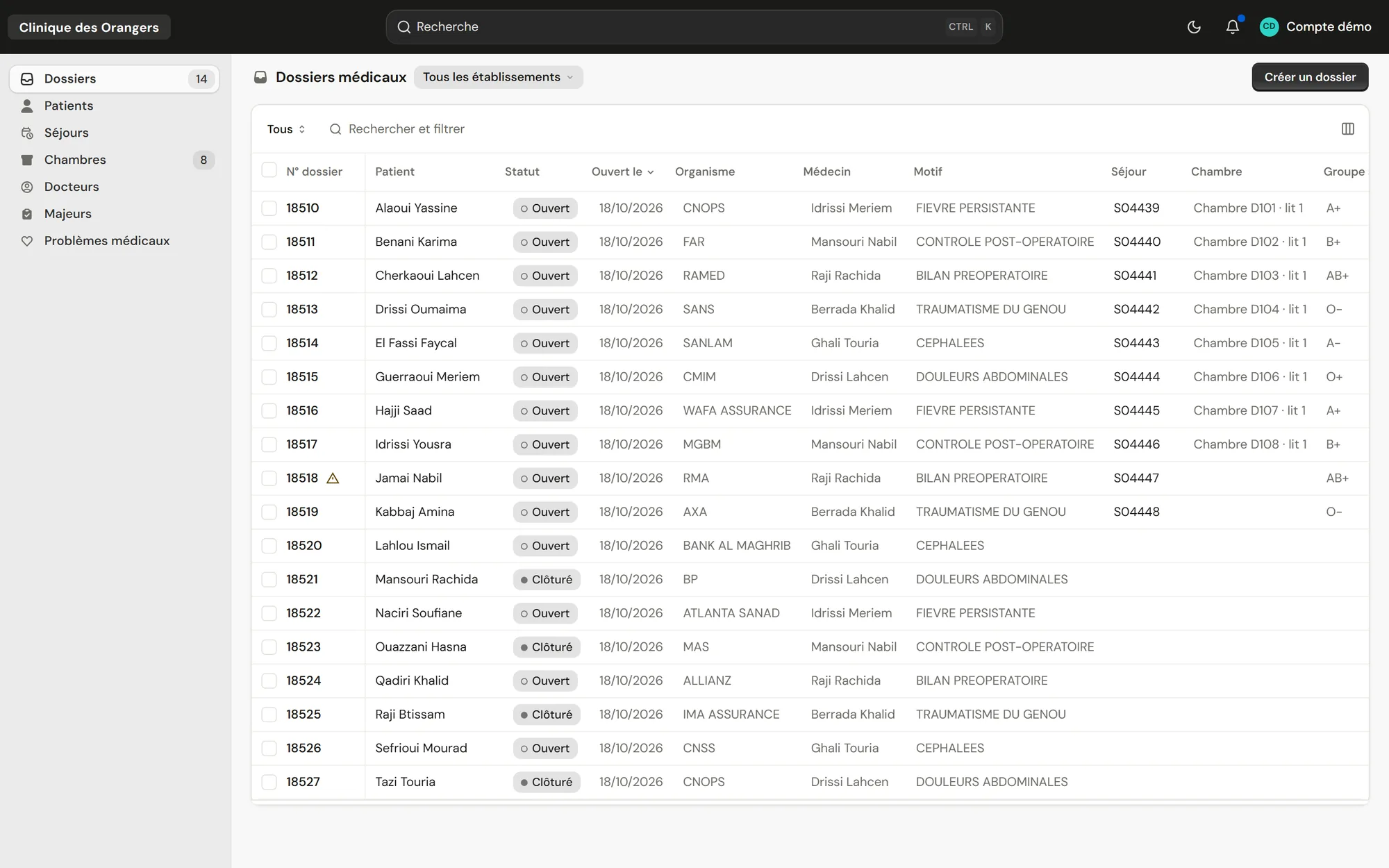
The patient files list in ClinicareOS, with made-up patients
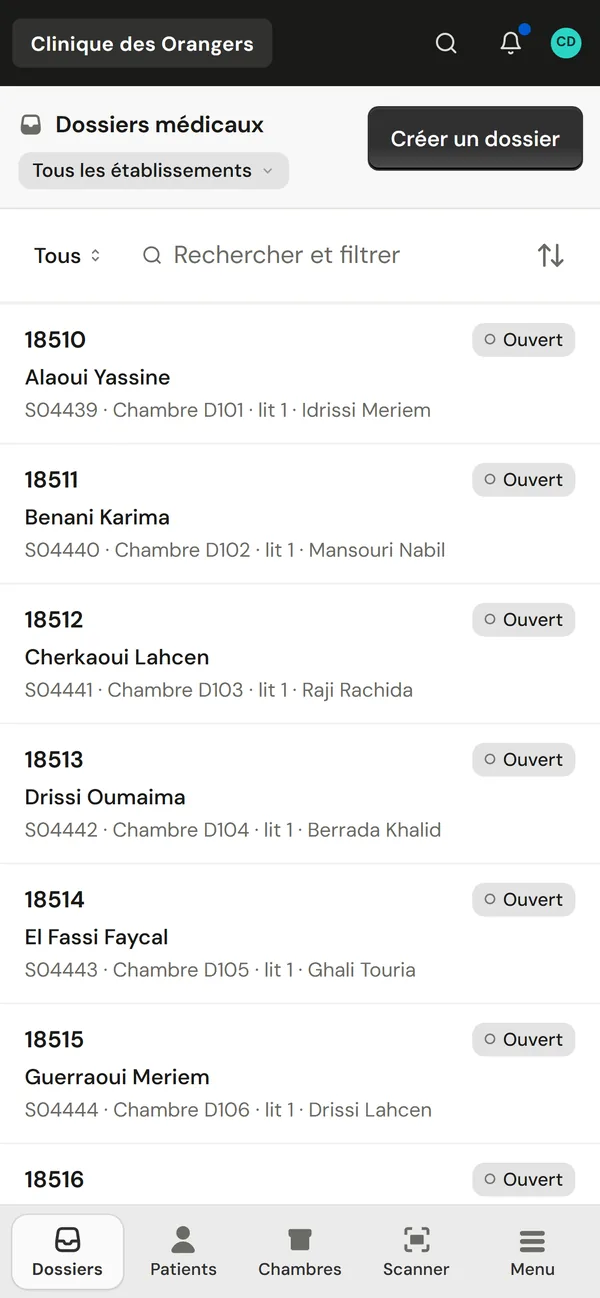
The same list on a phone

Screenshots of ClinicareOS on the demo clinic. Patients, doctors and clinic are made up. The interface is shown in French and is also available in English.

Insurers already in the reference list

CNSSCNOPSAXARMAWafa AssuranceSanlamAllianzCMIM

On a computer as on a tablet or a phone With your front desk's hardware already integrated

  • Kodak document scanners

    Both sides of the ID card in one pass, and old paper files in a single PDF.

  • Zebra label printers

    The file label prints by itself, as soon as the file is created.

  • ZKTeco handheld scanners

    Scanning the label or the order opens the right page, over USB or Bluetooth.

  • Canon office printers

    Orders, cover sheets and claims print in A4.

  • Any kind of device made to measure

    Another scanner, another printer, a badge reader: we integrate it to measure.

See the integrated hardware

A national ID card is all it takes to register a patient Two systems read it and every file or order carries a code you can scan

The ID card registers the patient The clinic knows at once whether they have been here before

At the front desk, both sides of the national ID card are photographed with a phone or scanned. The record fills itself in, both sides are kept with the patient, and a returning patient is found with their whole history at the clinic.

  • The patient found by ID number, with what the card adds or corrects
  • Their past files and stays, one click away
  • The file, the stay and the label open right after
  • Every change keeps its author and its time
See admission in detail
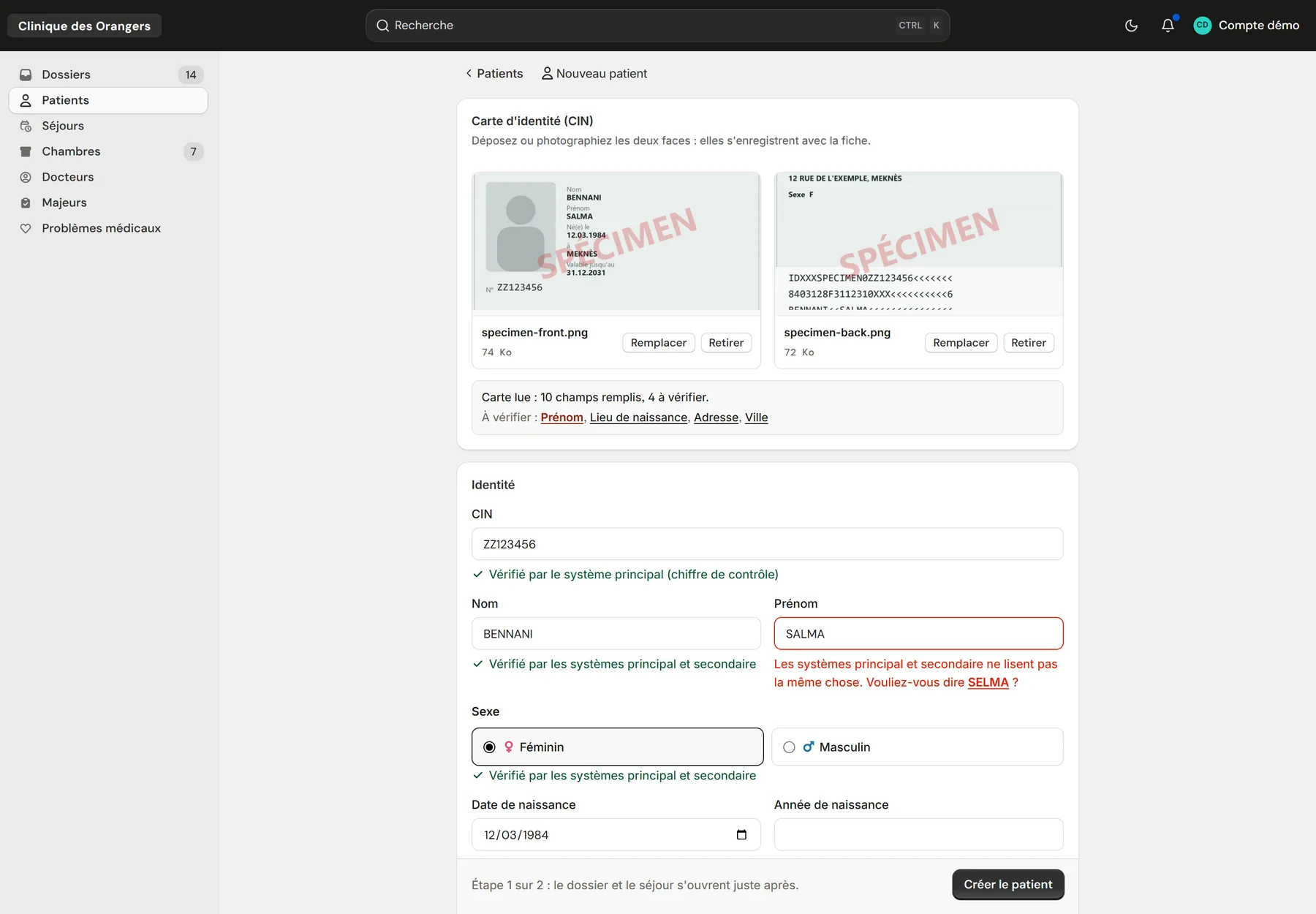
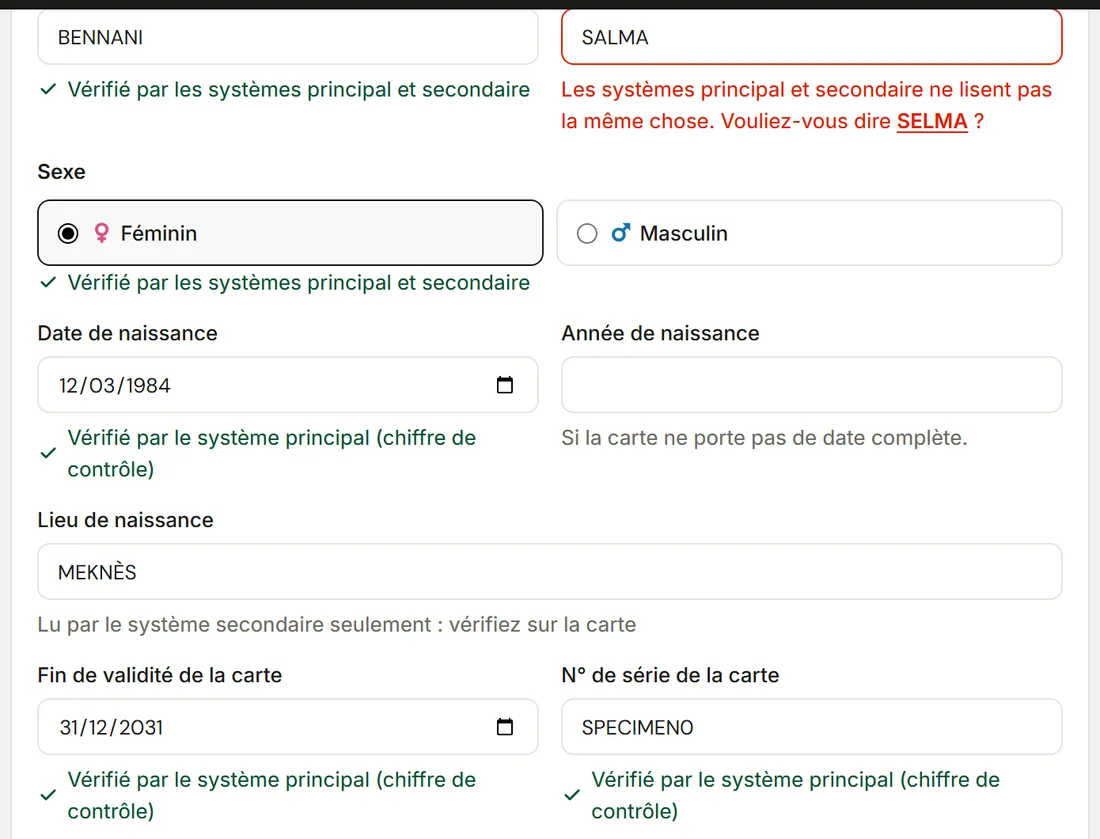
The New patient page filled in from a card
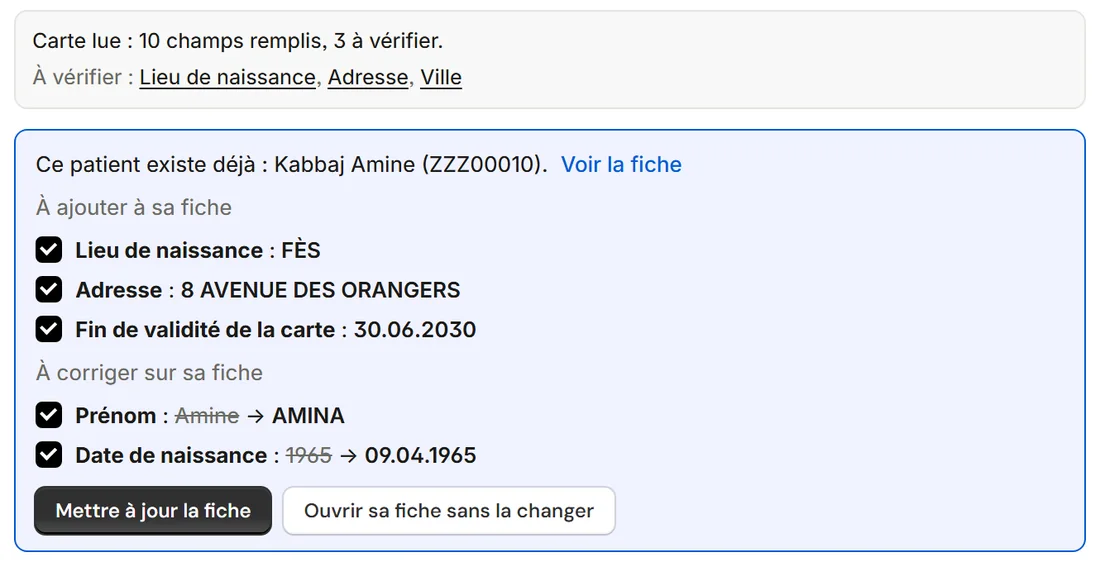
The returning patient, with what the card adds and corrects

Two systems read the card A typo no longer delays a reimbursement

The primary system reads the MRZ strip on the back of the card and checks it against its check digits. The secondary system, an AI reading, reads the front and the back. Each field shows its verdict; when the two readings differ, the field is flagged and the other reading offered in one click. The ID number, the name and the birth date go out right to the CNSS and the insurers.

10fields read on every card
2independent reading systems
4check digits verified
0hand-typed fields overwritten
How the reading is checked
The record's fields with each reading's verdict
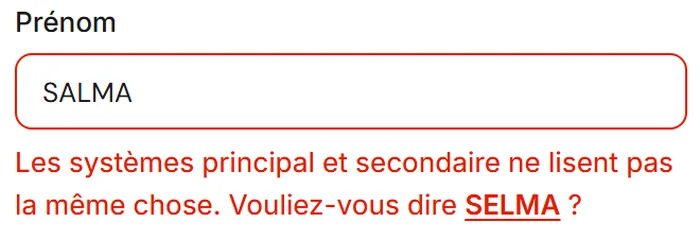
A first name read differently by the two systems, with the other reading offered

Everything printed can be scanned From the file to the sample

The file label carries a QR code, the test order the barcode of its number, the documents' cover sheet its QR code. A scan with a phone or a handheld scanner opens the right file. At the lab, scanning the order marks the sample's arrival and its time.

  • File label: QR code
  • Order: barcode, scanned when the sample arrives
  • Cover sheet: QR code, the scan files itself
  • A phone's camera, or a USB or Bluetooth handheld scanner
See codes and the scanner
18519KABBAJ AminaZZZ00010 · S04458Clinique des Orangers
The file
OrderORD020317
ORD020317
The order and its sample
File 18519 · patient
The phone

First the clinic's finances What each provider costs and what each insurer owes along with how efficient each operation is

Dashboard

Management sees everything in figures Volumes, net amounts and turnaround, compared to the previous period.
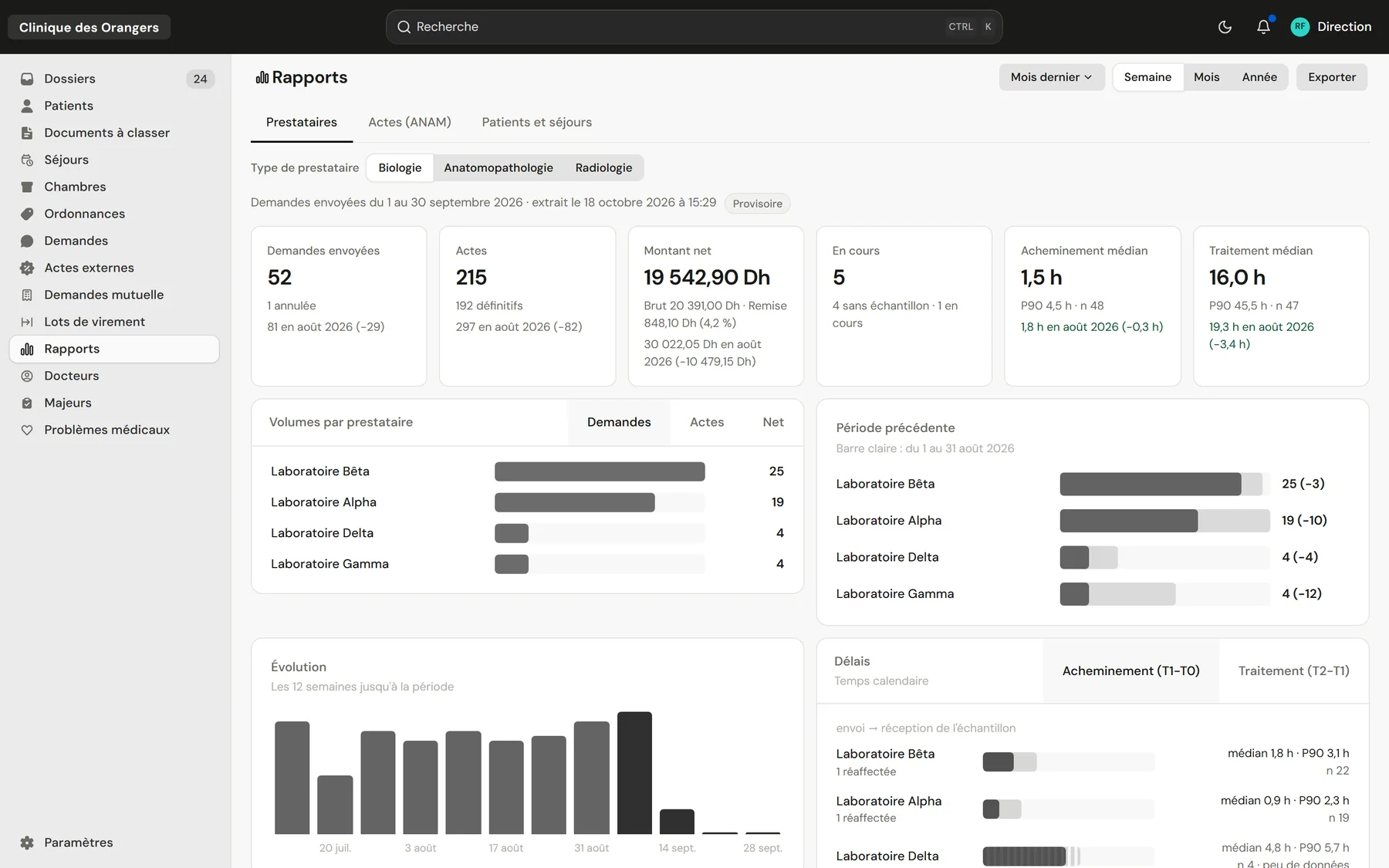
The provider report, with its key figures and charts
Providers and payments

Every dirham owed is accounted for Dated prices, discounts, payment batches and vouchers per provider.
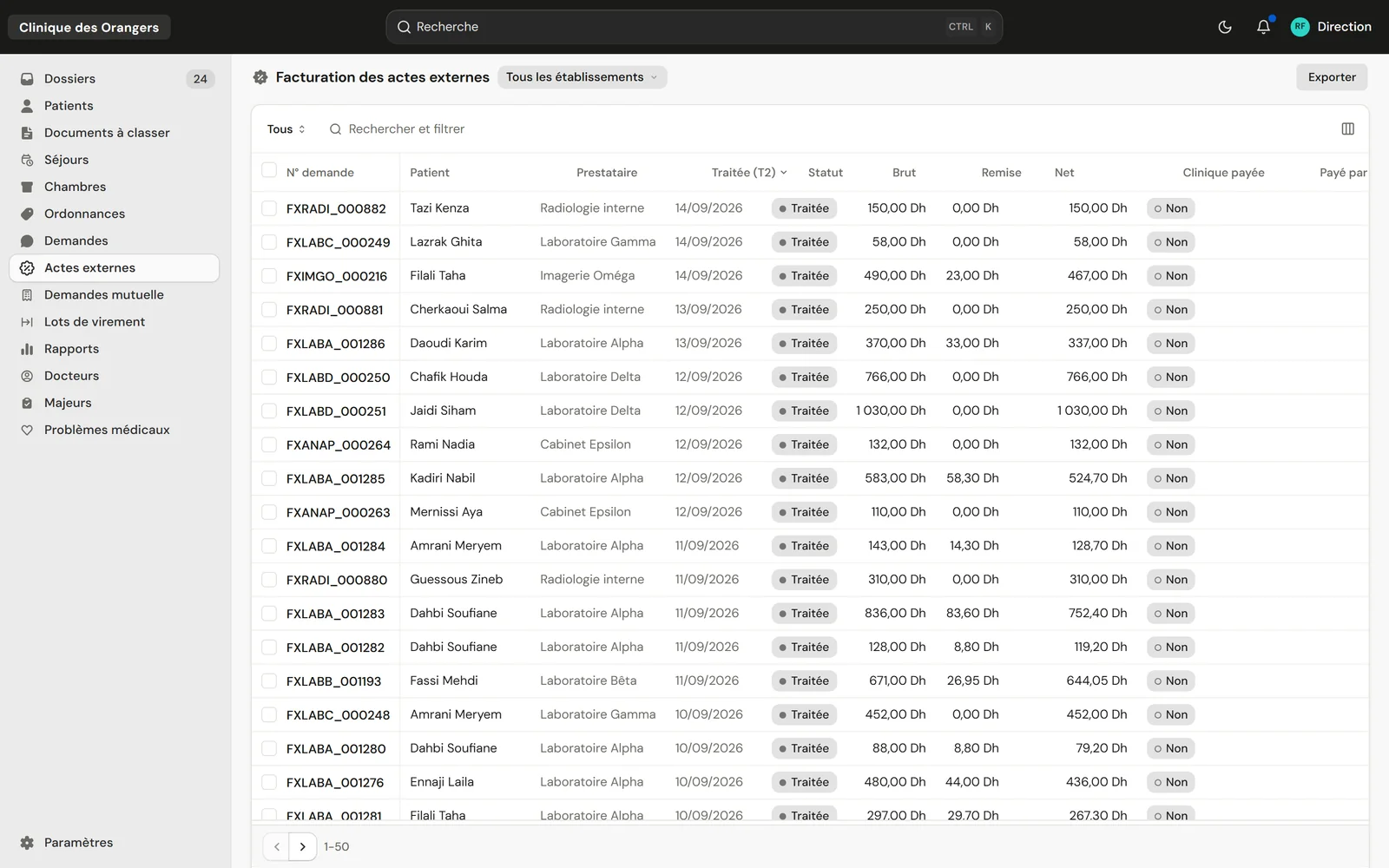
Billing of external acts: gross, discount, net and payment
Insurers and CNSS

Every claim followed through to payment Prepared, sent, closed or rejected, with its PDF.
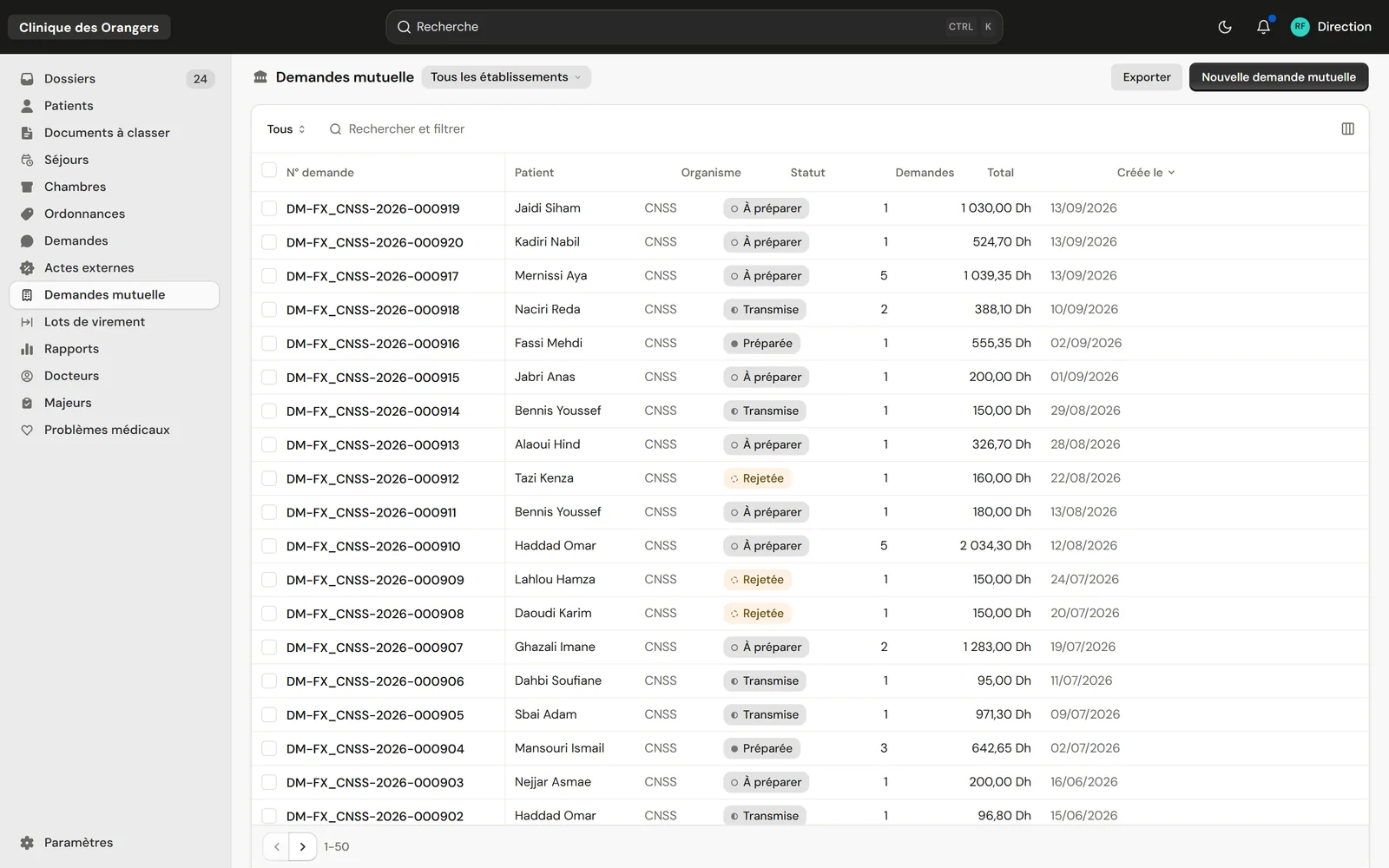
The list of insurer claims with their status
Operational efficiency

Each lab's turnaround measured As median and P90, from dispatch to sample received, then to the result.
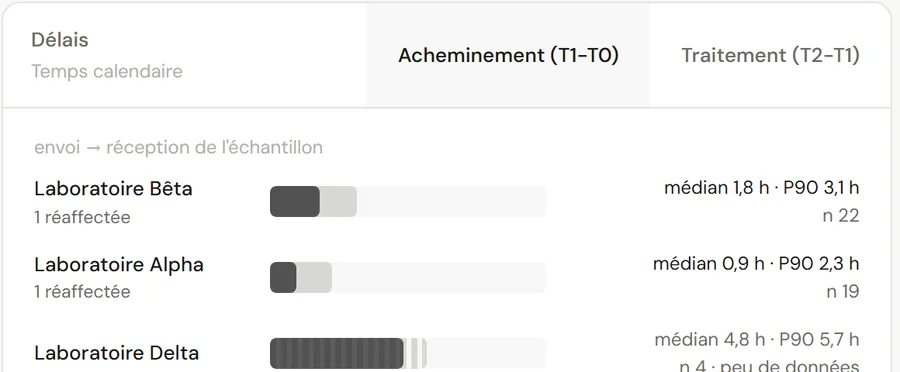
Transport times by provider, as median and P90
Stock and pharmacyComing soon

The clinic's pharmacy is the next step Stock, dispensing, and every product on the patient's invoice.

And the whole medical side in the same file Each team opens the same file and sees what its work needs

Admission and ID card

One page to admit The card read, the patient found or created, then the file and its label.
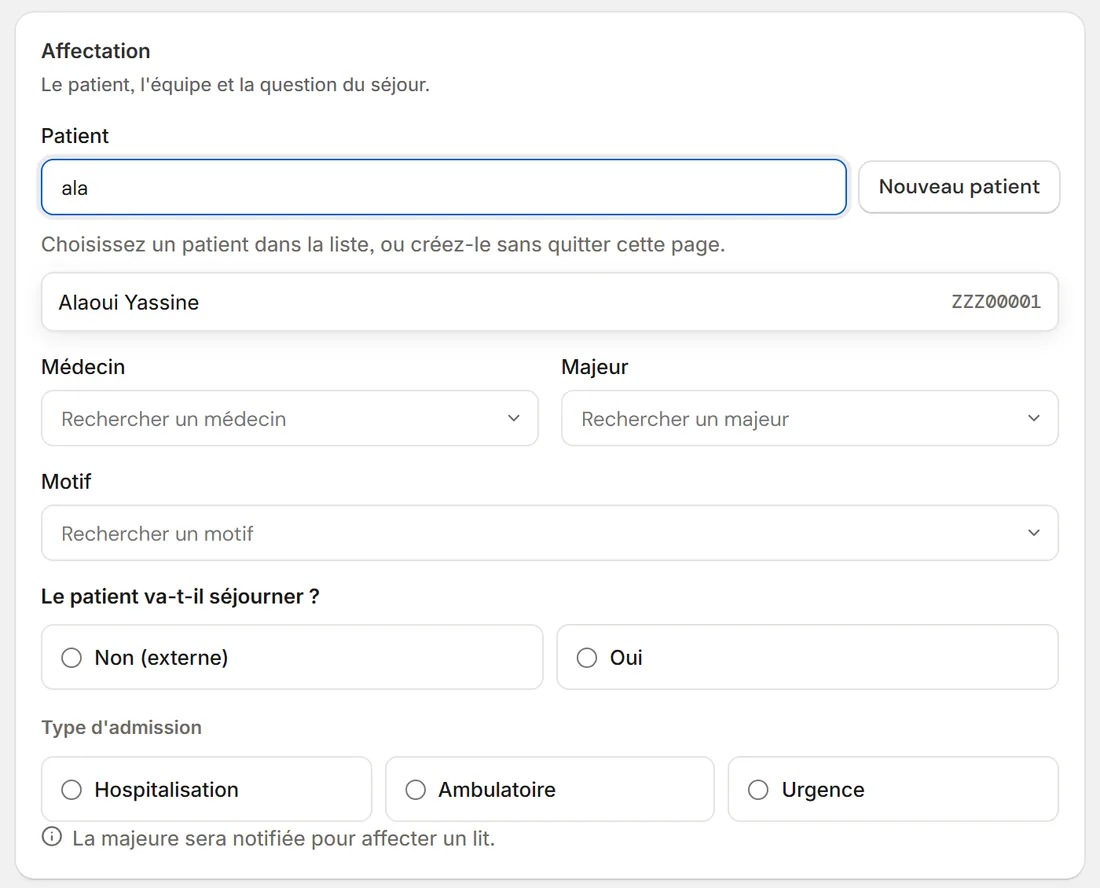
The New file form, with the patient picked from the list
Search

A forgiving search Mohamed, Mohammed and M'hamed lead to the same patient.
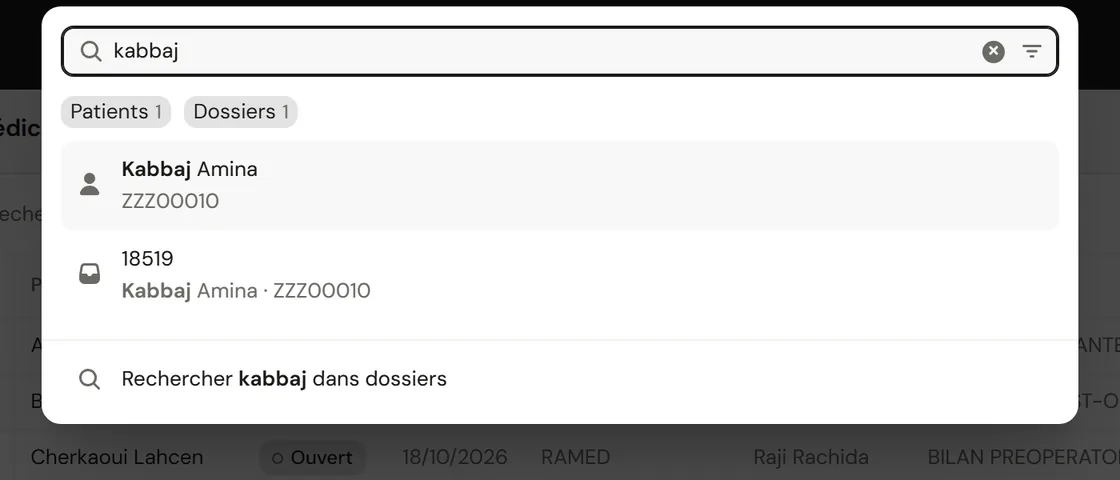
Search, with the patient and their file found
External tests

The order goes to the lab The result comes back into the patient's file.

Rooms

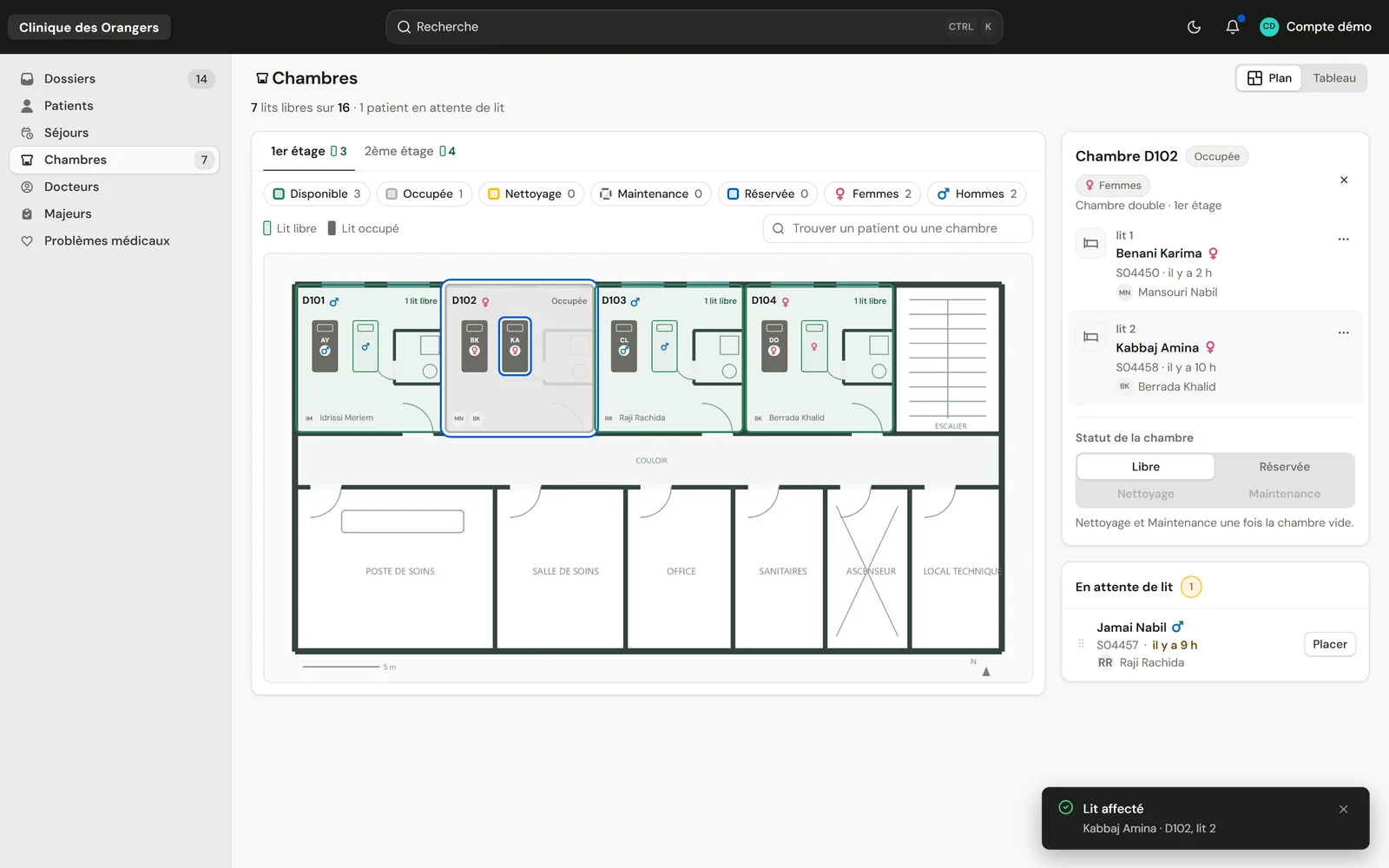
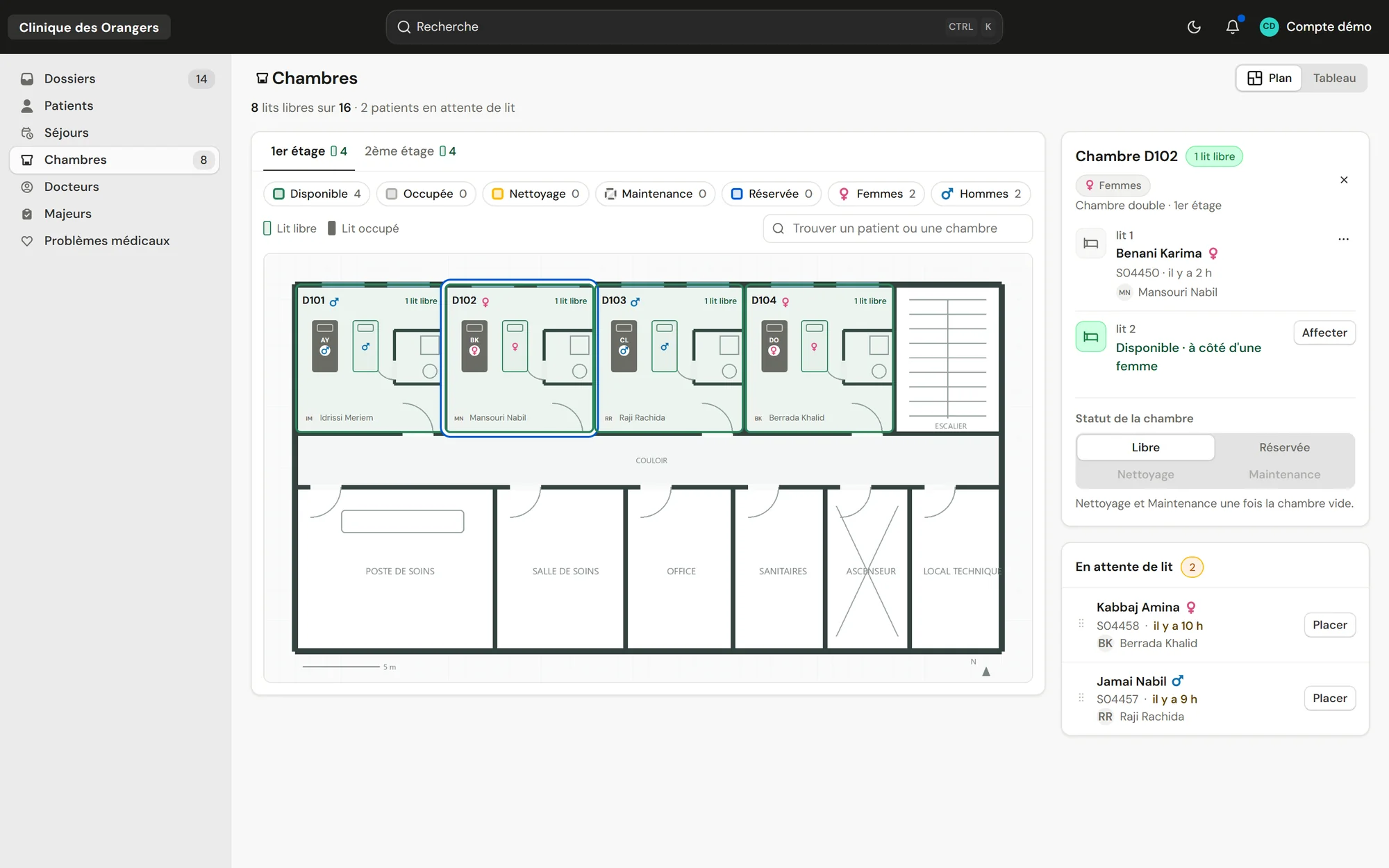
The bed plan floor by floor When you place a patient, the suitable beds light up according to the sex of the roommate.
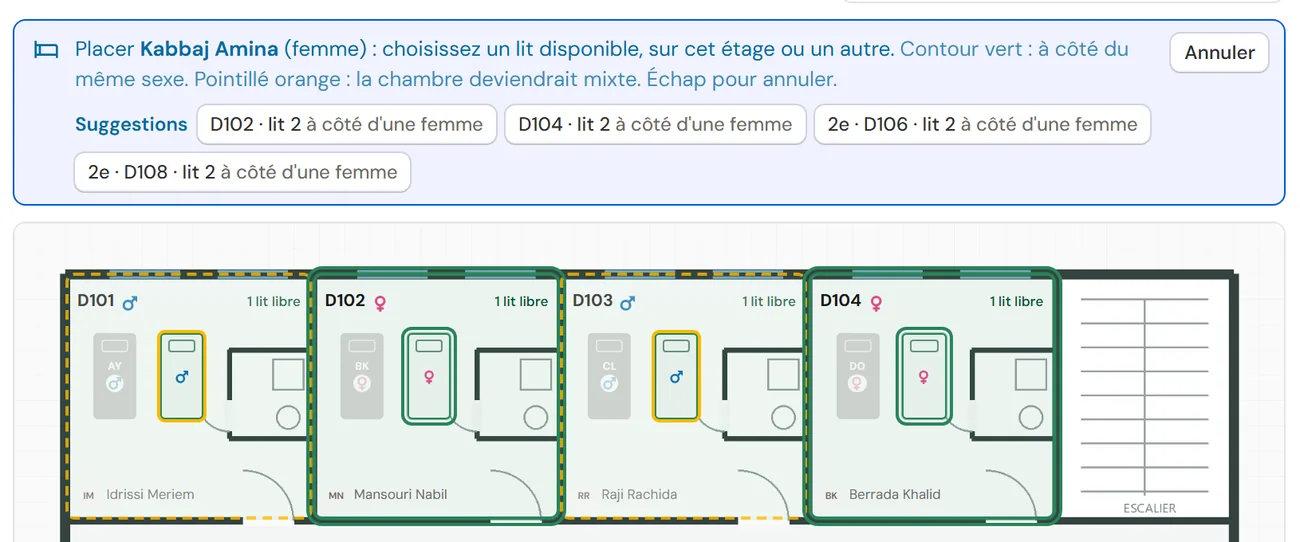
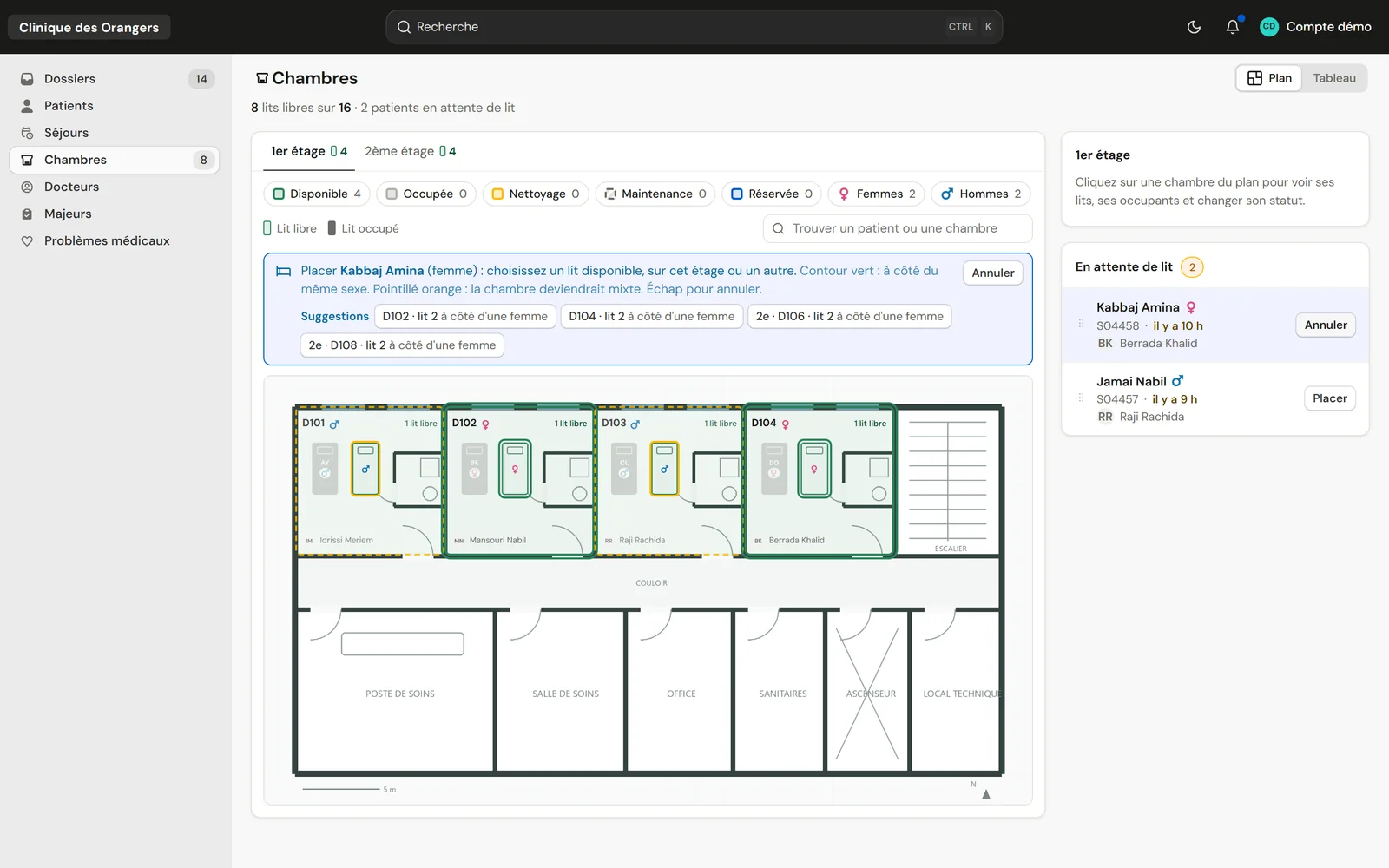
Placement mode on the floor plan, with the suggested beds
Scanned documents

A cover sheet per document Its QR code files the scan in the right patient file.

Codes and scanner

A scan instead of a search The label opens the file, with a phone or a handheld scanner.
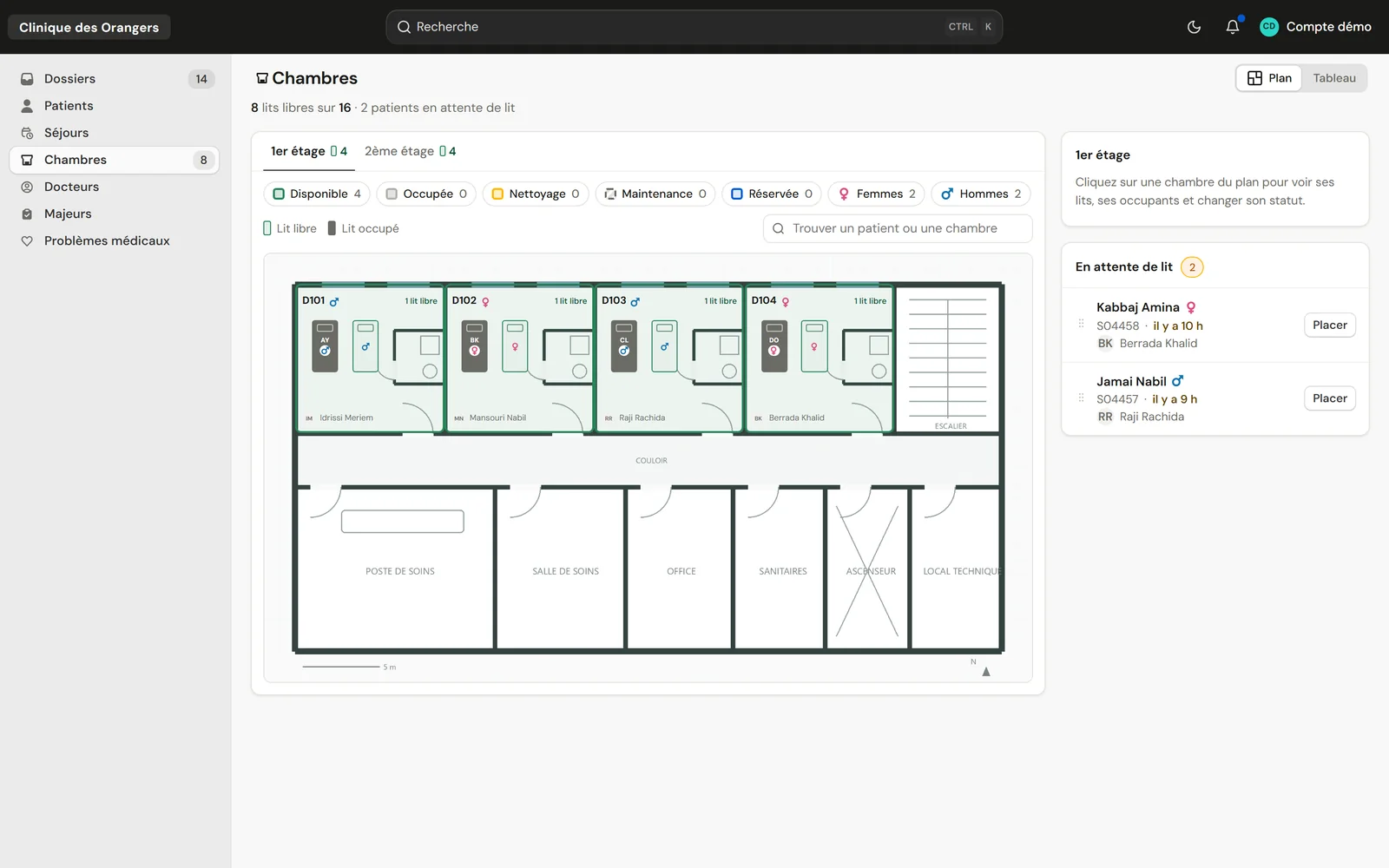
Placing a patient in four screens From the plan on a computer or a phone

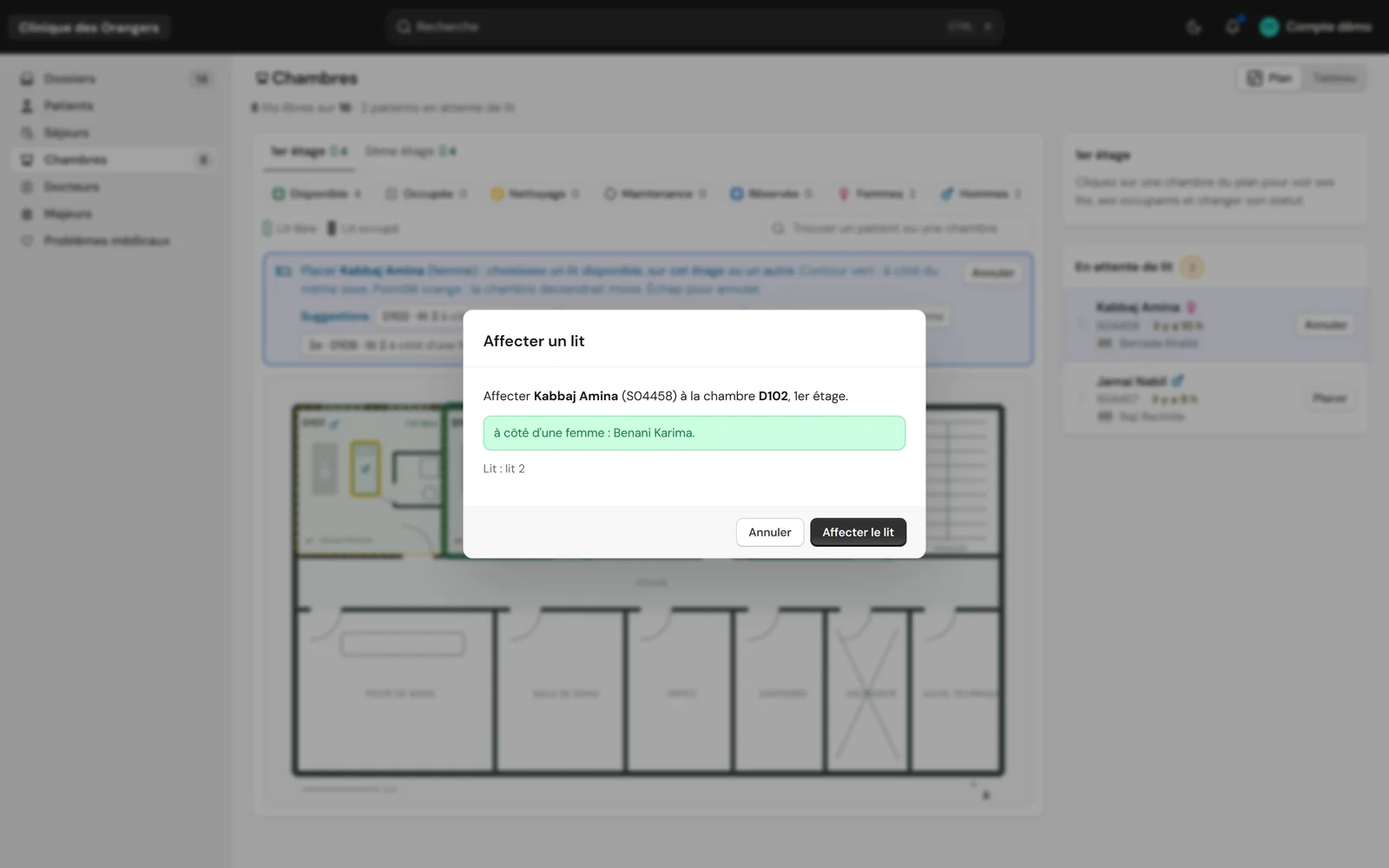
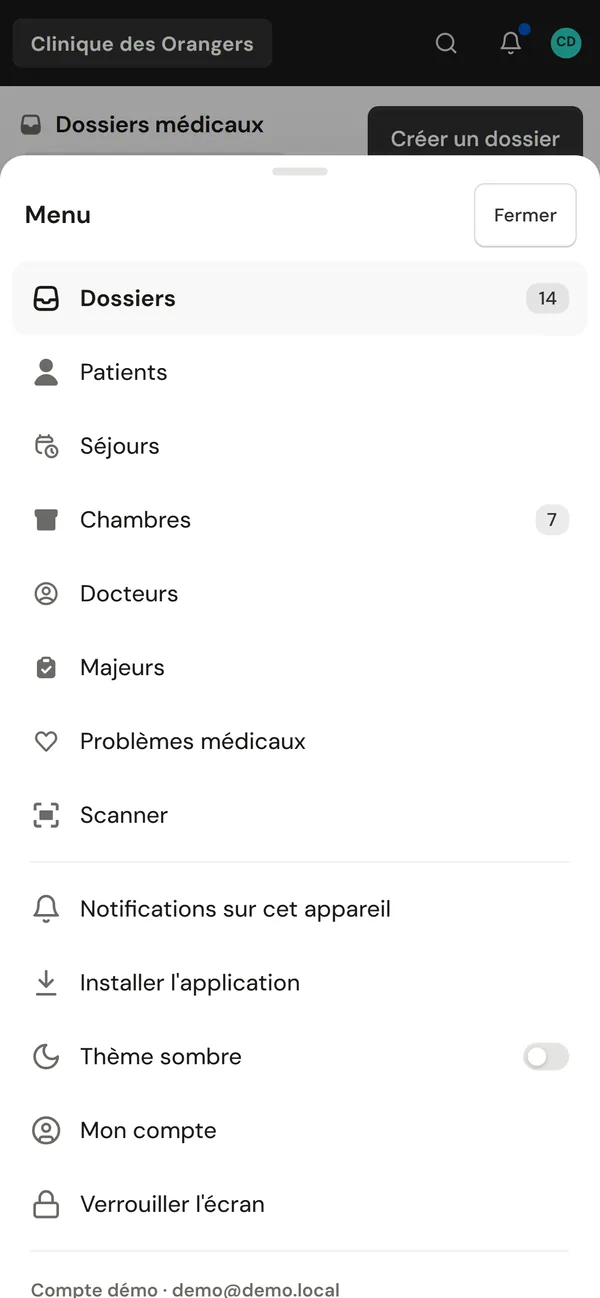
The room plan, two patients waiting for a bed Placement in progress, suitable beds in green The Assign a bed window Room D102 occupied and the Bed assigned message Waiting for a bed Suggestions Next to a woman Roommate Occupied Bed assigned
Real screenshots, demo clinic.

Moroccan clinics' rules are already in the system Morocco is the first country set up

3 000,00 Dh

Amounts in the Moroccan format, on every invoice and every report.

12.05.1983

Dates of birth, readable at a glance at the front desk.

ANAM

The national act catalogue and its key letters, dated at each edition.

CIN

The national ID card, front and back, attached to the patient.

Your labs and imaging centres work in the same system Each one has its own portal in the browser

An order keeps one trail from dispatch to result. Each step carries its time, and the clinic sees where every test stands.

Nothing to install

The portal opens in the browser, on a computer or a phone.

Identity after receipt

Before the sample is scanned, the lab sees the number, the status and the dates. Neither the patient's name nor the tests.

Prices line by line

The lab asks for a new price. Management accepts or declines each line.
At the bedside on a phone or a tablet ClinicareOS installs like an app from the browser

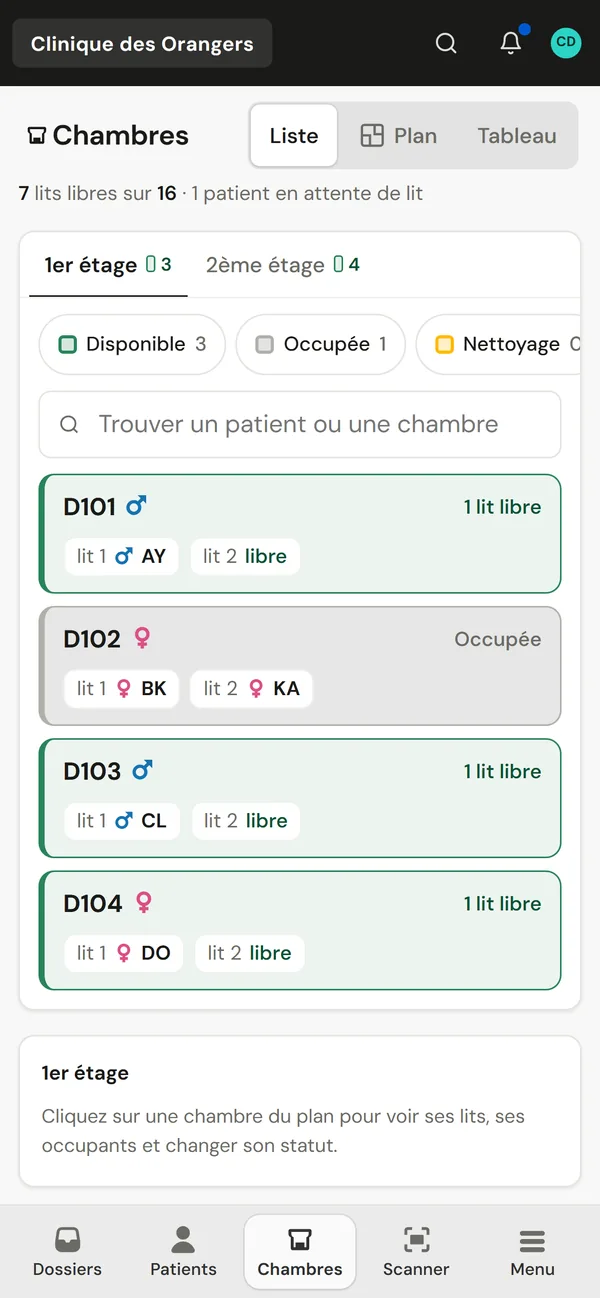
The room plan on a phone
Rooms
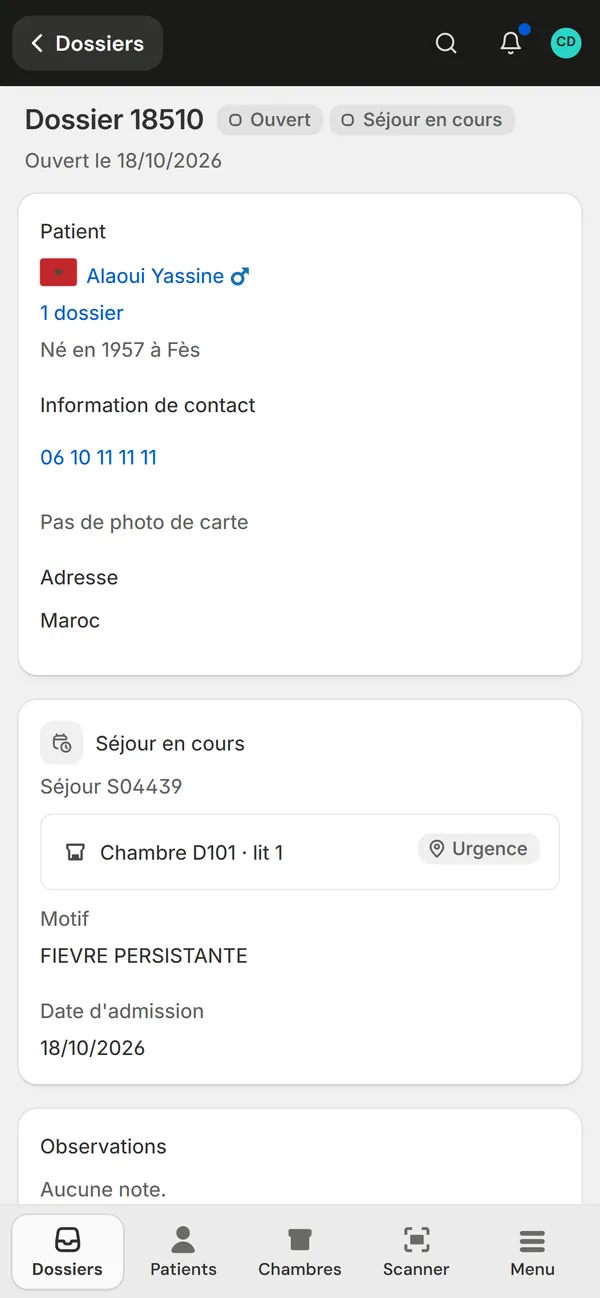
A patient file open on a phone
Patient file
The app menu on a phone
Menu

Notifications A stay to assign, an uploaded result, a mention in a comment.

A discreet lock screen The event and a number, never a patient's name.

Camera It reads the file label and the order code.

Made for the thumb A bar at the bottom of the screen, and lists turn into rows that are easy to tap.

Your patients' data is hosted in Morocco And each person sees only what their work needs

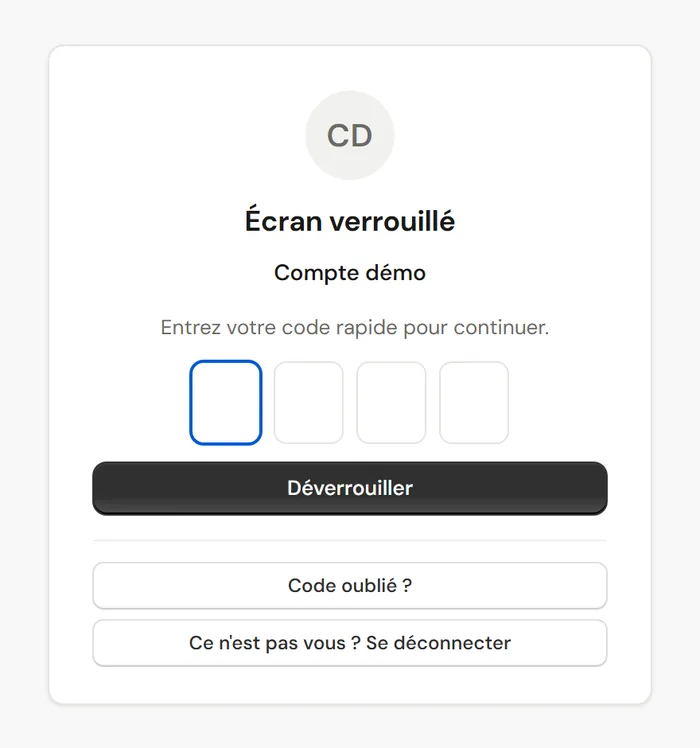
The ClinicareOS lock screen, asking for the 4-digit quick code

Servers in Casablanca The database and the files are hosted in Morocco, with an encrypted backup every night.

Access by job Reception, nursing, billing and management see what their work needs, in their own facility.

A full history Every change keeps its author and its date. Every opening of an ID card photo is logged.

Screen lock After 15 minutes without activity, by default. A personal 4-digit code reopens it.

New device A sign-in from an unknown device asks for a verification code, or notifies management.

Management in the loop A sign-in from outside Morocco, an account paused after wrong passwords: each alert reaches them.

For clinics and groups as for labs One system seen from three sides

Private clinics

Book a demo

Reception, nursing, tests and billing work on the same file from day one. The act catalogue and the insurer list are already filled in.

  • Ready-made roles: reception, head nurse, billing, management.
  • Import of your existing patients and files.
  • Price grids imported from an Excel file.

Clinic groups

Talk to the team

Each facility keeps its rooms, its teams and its file numbers. Management moves from one to the next, or sees them all together.

  • “All facilities” at the top of the lists.
  • Access limited to each person's facility.
  • Reports by facility and by period.

Labs and imaging

See the portal

Receive orders from partner clinics, scan samples on arrival and upload results from a portal.

  • One account per lab, opened by the clinic.
  • The time of every receipt is logged.
  • Payments and vouchers available to view.

What clinics ask us And our answers

What is a hospital information system (HIS)?

It is the software that connects a healthcare facility's departments: reception, care, tests, billing and management. ClinicareOS is a HIS built for private clinics and clinic groups.

Where is patient data hosted?

In Casablanca, on servers located in Morocco. An encrypted backup runs every night.

Does ClinicareOS handle insurers and national health schemes?

Yes. Each file carries its insurer, and each claim moves step by step until it is closed. Acts follow the ANAM catalogue.

Do our labs need to install software?

No. Each lab and imaging centre works in its own portal, from a browser or a phone.

Can you import our existing records?

Yes. We import your patients and files from your spreadsheets or your old software, after finding duplicate ID numbers and incomplete dates.

How much does ClinicareOS cost?

The price depends on the number of facilities and beds. Book a demo to get a quote.

Does ClinicareOS work outside Morocco?

Each country has its own insurers, act catalogue and currency in ClinicareOS. Morocco is the first country set up. Write to us about yours.

Rooms Open the full page

Bed management on each floor's plan The head nurse places patients and frees beds from one screen on a computer or a phone

The room plan shows each floor as it really is: the clinic's own floor plan in the background, rooms and beds in their places, free or occupied. Next to it, the patients waiting for a bed, with how long they have waited and their doctor.

Views
Plan, table, and a list on phones
A bed
Free or occupied, with the occupant's sex
A room's status
Free, reserved, cleaning or maintenance. Occupied or partly occupied is worked out on its own.
Floor plan
PNG, JPG, WebP, or a PDF converted in the browser. Otherwise, a grid.
Editing the plan
Head nurse, management and administrator
History
Every assignment, transfer and discharge keeps its author and its time
The 1st floor plan, with room D102's card open and two patients waiting for a bed 1 2 6 3 4 5
  1. 1One tab per floor, with its number of free beds.
  2. 2Filters by status and by sex, each with its count.
  3. 3The floor plan: each bed in its place, filled when occupied.
  4. 4The open room's card: its beds, their occupants, its status.
  5. 5Patients waiting for a bed, ready to place.
  6. 6Find a patient or a room on the plan.

Demo clinic, made-up patients. The floor plan is a demo drawing.

The right beds light up on their own The sex of the roommates guides the suggestion without ever blocking

Placement mode on the plan: suggestion banner, beds outlined in green and rooms in dashed orange

Green outline A free bed next to someone of the same sex. Suggested first.

Empty room Suggested next, when no same-sex roommate has a free bed.

Dashed orange The room would become mixed. It is allowed, and the confirmation says so.

  • “Place” from the waiting list, or drag the patient onto a bed.
  • Suggestions cover every floor: a bed on the 2nd floor can be offered from the 1st.
  • Esc leaves the mode without changing anything.

Everything that happens to a bed in one place From the wait to the discharge

The Assign a bed window

Confirm before assigning

The window names the patient, the stay, the room, the floor and the roommate. One click on “Assign the bed” and it is done.

Room D102's card

The room's card

One click on a room opens its beds, their occupants, the stay number, since when and the doctor. The room's status is changed here.

A bed's menu: transfer, open the file, discharge

Transfer or discharge

A bed's menu moves the patient to another bed or discharges them. A discharge frees the bed and closes the stay, after confirmation.

The list of patients waiting for a bed

The bed waiting list

Every admitted patient waits here, with the stay number, the wait and the doctor, until they are placed.

The tooltip of an occupied bed

A hover is enough

Hovering over a bed shows who is in it, the stay, the doctor and since when, without opening anything.

Told at the right moment

When a hospital stay is admitted, the head nurse gets a notification, even with the app closed. The lock screen never shows the patient's name.

Every bed row by row To count them and sort or filter them

The table follows the same rules as the other lists: search, filters, sorting, columns to choose, and a total at the bottom. One click switches between the plan and the table.

Room and bedFloorBed statusPatientSexRoom occupantsStayAttending doctorAdmitted onLength
The bed table, one bed per row

Your clinic's own plan rather than a generic diagram Each floor gets its own plan and beds are laid out as on the ward

  1. Import the plan

    A PNG, JPG or WebP image, or a PDF the browser converts. Without a plan, a grid will do.

  2. Draw the rooms

    Each room is a rectangle laid on the plan. Guides line it up with its neighbours.

  3. Place and turn the beds

    Beds move and rotate as in the real room, and carry the ward's names: bed 1, door side, window side.

  4. Save

    Changes stay as a draft until “Save”. An occupied bed cannot be removed, and a room always keeps at least one bed.

The floor plan on a phone
Plan
The room list on a phone
List

From the corridor The same view at thumb size

  • List, Plan or Table, chosen at the top of the screen.
  • In the list, each room shows its beds large and easy to tap.
  • The bottom bar reaches the rooms in one tap.
  • ClinicareOS installs like an app, without an app store.

What the system checks for you Each rule is held by the database and not by anyone's memory

SituationWhat happens
One bed for two patientsImpossible. A bed holds one patient, and a stay occupies one bed.
Room being cleaned or under maintenanceNo placement until the status changes.
Reserved roomOnly the patient who reserved it can be placed there.
Roommate of the other sexFlagged in orange and recalled at confirmation, never blocked.
TransferThe old bed closes and the new one opens in one step, after confirmation.
DischargeThe bed is freed and the stay closed, after confirmation.

About rooms

Can a woman and a man share a room?

Yes. The plan flags it in orange and the confirmation recalls it, without forbidding it: the decision stays with the head nurse.

What happens to the bed when the patient leaves?

The discharge frees the bed and closes the stay, after confirmation. The room can then be set to cleaning.

What if our rooms don't all have the same number of beds?

Each room has its own beds, named as on your ward. Its capacity is simply the number of active beds.

What if we have no floor plan?

Rooms show as tiles meanwhile. A grid also lets you draw rooms without an image.

See your own floors in ClinicareOS The demo follows a patient from placement to discharge

Book a demo

The other modules

Admission and ID card Open the full page

Patient admission from the national ID card with no typing errors Two systems read the ID card and the clinic knows at once whether they have been here before

At the front desk, both sides of the national ID card are dropped in, photographed or scanned. ClinicareOS fills in the record, attaches the sides to the patient and checks every field. A returning patient is found with their files; a new patient is created, and their file and stay open right after.

Fields read
ID number, last and first name, sex, birth, birthplace, address, city, expiry and serial number of the card
Primary system
The MRZ strip on the back of the card, with its four check digits
Secondary system
An AI reading of the front and the back
Expired card
Red banner and a sound, without blocking registration
Typing by hand
Always possible, and never overwritten by a reading
Label
Printed from the file, with its QR code
The New patient page after reading a card
10fields read on every card
2independent reading systems
4check digits verified
0hand-typed fields overwritten

The “New patient” page after reading a SPECIMEN card, on the demo clinic.

Every field says where its value comes from And what is left to check

The fields with their verdict

Each field's verdict

Checked by both systems, checked by the check digit, or read by the secondary system only: the verdict shows under each field.

A first name read differently by the two systems

When the two readings differ

The field turns red and offers the other reading in one click. The typo never reaches the CNSS or the insurer.

Both sides dropped in and the reading summary

The summary under the card

“Card read: 10 fields filled, 4 to check.” Each field to check links to its place in the record.

The returning patient, with what the card adds and corrects

A returning patient

The ID number finds the existing record. The card lists what it adds and what it corrects, and “Update the record” applies it all, with each field's history.

The file and the label right after Without typing the patient again

The New file form

The file

Doctor, head nurse, reason, admission type and insurer. For a hospital stay, the head nurse is notified to assign a bed.

The file label

It prints from the file and carries a QR code: a scan with a phone or a handheld scanner opens the file.

Test orders

Each order carries the barcode of its number, which the lab scans when the sample arrives.

What protects your reimbursements A correct identity from the front desk on

SituationWhat ClinicareOS does
Readable MRZ stripA value is only confirmed when its check digits pass.
The two readings differThe field is flagged and the other reading offered.
Card without an MRZ stripThe secondary system reads it alone, and every field is to be checked.
Field typed by handNever overwritten by a reading.
Expired cardFlagged in red, with a sound; registration stays possible.
Returning patientFound by ID number, or by exact name when the birth year doesn't contradict it.

About admission

Do we need a special scanner?

No. A phone is enough to photograph both sides. The front-desk scanner can also send them in one go.

What if the reading fails?

Typing by hand is always possible, and the record saves as usual.

Are the card photos kept?

Yes, with the patient's record. Every opening of an ID card photo is logged.

See ClinicareOS on your own data The demo follows a patient from admission to the invoice

Book a demo

The other modules

Search Open the full page

Patient search finds anyone from what you know about them A misspelled name or a number is enough to bring up the right record

Search opens from any page with Ctrl K. It looks through patients and files at once, ignores accents and word order, and recognises the variants of the same name.

Opening
Ctrl K, or the magnifier at the top of the screen
What it reads
Last name, first name, ID number and file number
Variants
Mohamed, Mohammed, M'hamed and Mouhamed lead to the same patient
Accents and order
Don't matter
Typos
The closest names are offered
Results
Patients and files, counted separately
Search open over the file list

“fassi” finds Fassi Said and El Fassi Faycal. Demo clinic, made-up patients.

Whatever you have at hand is enough A card or a number or even just part of a name

A search by ID number

By ID number

An ID number finds the patient and all their files.

A search by part of a name

By part of a name

Every word counts, wherever it sits in the name.

Patient and file results

Patients and files together

“Search in files” opens the list already filtered.

Name variants

Each name is reduced to a key: one letter more or less doesn't make you miss the patient.

Search inside the file list

Inside every list

Each list has its own search, column filters and saved views.

From the keyboard

Reception searches, picks and opens without leaving the keyboard.

What you type and what comes out Search reads the way a receptionist would

You typeClinicareOS finds
An ID numberThe patient, then all their files.
A file numberThat file first.
mohamed alamiALAMI Mohamed: word order doesn't matter.
MohammedAlso Mohamed, M'hamed and Mouhamed.
fès, fes or FESThe same thing: accents and capitals don't matter.
A mistyped nameThe closest names, when no patient carries the typed word.

About search

Do we see other facilities' patients?

Each person searches the facilities they have access to, and no further.

And with a typo?

When no patient carries the typed word, search offers the closest names.

See ClinicareOS on your own data The demo follows a patient from admission to the invoice

Book a demo

The other modules

External tests Open the full page

Lab and imaging tests from the order to the result The lab works in its portal and every step carries its time

The validated order goes to the chosen lab or imaging centre. The lab scans its barcode when the sample arrives, takes the patient in, then uploads the result, which joins the file.

Types
Biology, anatomopathology, imaging
Code
The number's barcode, on the A5 order
Statuses
Sent, sample received, patient taken in, done
Choosing the provider
Usual lab, lab of the period, or manual choice with its reason
Reassignment
To another provider, at that provider's prices
Portal
Browser or phone, nothing to install
The list of provider requests

Provider requests of a made-up clinic: status, provider, sent and done dates.

One request step by step Every step carries its time

  1. Order validated

    The doctor prescribes; the A5 order prints with the barcode of its number.

  2. Sent to the provider

    The request goes to the chosen lab or imaging centre. Its dispatch time is kept.

  3. Sample received

    The lab scans the order's barcode; the patient's identity becomes visible to it.

  4. Patient taken in

    The lab confirms it has taken the patient in, from its portal.

  5. Done

    The result is uploaded and joins the patient's file.

An order's record with its acts

A complete trail for every test On the clinic's side and the lab's

An order's record

The order

The prescribed acts with their codes, the doctor, the provider, and the A5 PDF to print with its barcode.

A provider request's record

The provider request

Its acts at the provider's price, its discount, its net amount, and reassignment in one choice.

A test's log

Dispatch, sample receipt, result: each step keeps its time and feeds the turnaround figures.

Identity after receipt

Before the sample is scanned, the lab sees the number, the status and the dates. Neither the patient's name nor the tests.

When a lab can't The request changes hands without losing anything

Reassign

The request gets a new number and its prices follow the new provider's tariff.

Price requests

The lab proposes a new price; management accepts or declines each line.
The list of orders

All orders

Patient, type, status, provider and doctor, in a list you can filter and export.

About tests

Does the lab see all our patients?

No. It only sees its own requests, and the patient's name only after the sample arrives.

How is the lab chosen?

The patient's usual lab, the lab of the period, or a manual choice with its reason. Reports count each way.

Do our labs need to install anything?

No. The portal opens in the browser, on a computer or a phone.

See ClinicareOS on your own data The demo follows a patient from admission to the invoice

Book a demo

The other modules

Scanned documents Open the full page

Scanning the patient's papers straight into their file A cover sheet with a QR code and the scan finds its own place

Reports, old files and paper results go through the front-desk scanner. The cover sheet printed from the file carries a QR code: what follows it is filed in that file. Without a cover sheet, the scan waits in “Documents to file”.

Cover sheet
Printed from the file, with its QR code
Volume
Up to 80 pages grouped in one PDF
Separator sheet
To scan several documents in one go
To file
Scans without a cover sheet, filed by hand
In the file
Thumbnails and a viewer
Cover sheet18519
KABBAJ AminaPut this page on top of the patient's papers, then scan them all.

Illustration: the cover sheet placed on the patient's papers before scanning.

Four steps at the desk The filing does itself

  1. Print the cover sheet

    From the patient's file, in one click.

  2. Put it on top of the papers

    Reports, old files, paper results.

  3. Scan it all in one go

    Up to 80 pages, grouped in one PDF.

  4. Find it in the file

    The PDF is filed in the file, with its thumbnails.

Cover sheet18519
KABBAJ AminaPut this page on top of the patient's papers, then scan them all.

From paper to the file Without retyping or renaming a file

The cover sheet

It carries the file number in its QR code.

The Documents to file list

Documents to file

Scans that arrived without a cover sheet wait here, with the “Print a separator sheet” button.

In the file

Documents open inside the file, with their thumbnails.

What happens to each scan Nothing gets lost

The scanWhat ClinicareOS does
With a cover sheetFiled in the file whose number the QR code carries.
Without a cover sheetSet aside in “Documents to file”.
Several documents at onceA separator sheet between each document.
A whole old fileUp to 80 pages in one PDF.

About documents

What happens to a scan without a cover sheet?

It waits in “Documents to file”, where a team member files it in the right file.

Can we scan a whole old file?

Yes, up to 80 pages grouped in one PDF.

See ClinicareOS on your own data The demo follows a patient from admission to the invoice

Book a demo

The other modules

Codes and scanner Open the full page

QR code labels and scanners for everything printed With a phone or a handheld scanner a code opens the right page

The file label carries a QR code, the order the barcode of its number, the cover sheet its QR code. With a phone's camera, or a USB or Bluetooth handheld scanner at the desk, a scan opens the file or the order from any page.

File label
QR code
Order
Code 128 barcode
Cover sheet
QR code
Phone
The camera reads the code; the image is neither kept nor sent
Handheld scanner
USB or Bluetooth, from any page
Lab
Scans the order when the sample arrives
18519KABBAJ AminaZZZ00010 · S04458Clinique des Orangers
OrderORD020317
ORD020317
File 18519 · patient

Illustration: the file label, the order's barcode and a phone reading it.

A scan instead of a search At the desk as at the bedside and at the lab

At the desk

The handheld scanner reads the label and opens the file, with no click first.

At the bedside

The phone's camera reads the label and opens the file.

At the lab

The order's barcode marks the sample's arrival and its time.

The phone's scanner Nothing to install and nothing stored

  1. Open the scanner

    From ClinicareOS's menu, on the phone.

  2. Allow the camera once

    A card explains why before the phone asks.

  3. Aim at the code

    The file label or the order's barcode.

  4. The right page opens

    A green receipt says what opens, a red one says why nothing does.

File 18519 · patient
18519KABBAJ AminaZZZ00010 · S04458Clinique des Orangers

Each code opens its page For whoever may see it

Code scannedWhat opens
File labelThe patient's file.
Order, at the clinicThe order and its tests.
Order, at the labThe sample's receipt, with its time.
Cover sheetThe scan filed in its file.
Unknown code or no accessA message says why nothing opens.

About codes

Is the camera image stored?

No. It is read on the device, neither kept nor sent.

Which handheld scanner?

A 2D USB or Bluetooth scanner that behaves like a keyboard.

See ClinicareOS on your own data The demo follows a patient from admission to the invoice

Book a demo

The other modules

Providers and payments Open the full page

Paying labs and providers to the dirham From dated prices to payment batches and vouchers

Each completed request carries its acts at the provider's price on that day, its discount and its net amount. Billing groups the requests into payment batches, and each provider gets its voucher.

Prices
Per provider, with the date of each version
Amounts
Gross, discount, net, and what the clinic has paid
Payment batches
Requests grouped for one payment
Vouchers
One per provider and batch
Price requests
Sent by the lab, decided line by line
Export
Excel
Billing of external acts

Billing of external acts of a made-up clinic: gross, discount, net and payment.

From price to transfer Every amount keeps its source

  1. A dated price

    Each provider has its prices, with the date of each version.

  2. The completed request

    Its acts at the price in force on the day it was sent.

  3. The discount and the net

    Gross, discount and net amount, line by line.

  4. The payment batch

    Requests paid together, in one batch.

  5. The voucher

    One per provider, for its accounting.

A provider request's amounts

Every dirham has a source From the price to the payment batch

A request's amounts

Per request

Unit price, discount and total of each line, then the gross, discount and net amounts.

The breakdown by provider

Per provider

Requests, acts, gross, discount and net for each provider, with its share of the volume.

Payment batches

Requests paid together form a batch, with a voucher per provider.

Prices

A new price proposed by the lab only applies once accepted, line by line.

About payments

Do old requests change when prices change?

No. A request keeps the price in force on the day it was sent.

Who sees the amounts?

Only people allowed to read amounts, such as management and billing.

See ClinicareOS on your own data The demo follows a patient from admission to the invoice

Book a demo

The other modules

Insurers and CNSS Open the full page

CNSS and insurer claims followed through to payment No claim stays in a drawer

An insurer claim groups a stay's acts for one insurer. It moves step by step: to prepare, prepared, sent, then closed or rejected. Its PDF is generated from its record.

Statuses
To prepare, prepared, sent, closed, rejected
Insurers
CNSS, CNOPS, FAR and private insurers, already in the reference list
Number
DM-CNSS-2026-000712, one counter per clinic
Identity
The one read on the ID card by both systems
Follow-up
Declared coverage and amounts sent, in the reports
The list of insurer claims

Insurer claims of a made-up clinic, with their status and amount.

One claim from preparation to settlement With the completed requests it covers

An insurer claim's record

The record

The linked completed requests, the stay, the insurer, the total, and the status changes.

The steps

Each status change keeps its author and its date.

Where each claim stands At a glance in the list

StatusWhat it means
To prepareThe stay's acts are waiting to be grouped.
PreparedThe PDF is generated, ready to go.
SentSent to the insurer, with its date.
ClosedThe claim is finished.
RejectedIt stays in the list, with its history.

About insurers

How does the double card reading help here?

A mistyped ID number or birth date can get a claim rejected or delayed. The two reading systems prevent it from the front desk on.

Can we add our own agreements?

Yes. Each clinic adds its own insurers to the national list.

See ClinicareOS on your own data The demo follows a patient from admission to the invoice

Book a demo

The other modules

Dashboard Open the full page

Management's dashboard Volumes and amounts as well as turnaround over the period you choose

Three reports: providers, acts of the ANAM catalogue, patients and stays. Each figure compares to the previous period, filters by provider type and exports.

Periods
Week, month, year
Amounts
Gross, discount, net, and the final share
Comparison
The previous period, with the difference
Acts
By family and by ANAM code
Access
Management and administrator; amounts to those allowed
Export
Excel
The provider report

The “Providers” report of a made-up clinic, for September.

What you read at a glance Then the detail provider by provider

The key figures

Key figures

Requests, acts, net amount, in progress, and median turnaround, with the gap to the previous month.

Volumes by provider

Volumes by provider

In requests, acts or net amount.

The trend over twelve weeks

The trend

The last twelve periods, to see the season and the trend.

The ANAM acts report

ANAM acts

Acts by type and catalogue family, with the codes used and the net per act.

Three reports over one period Each exports to Excel

ReportWhat it shows
ProvidersRequests, acts, amounts and turnaround, provider by provider.
ANAM actsActs by type and catalogue family, the codes used, the net per act.
Patients and staysPatients admitted and stays of the period.

About reports

Do we need an external BI tool?

No. Reports live inside ClinicareOS, and no third-party tool reads the database.

Does a group see all its facilities?

Yes, facility by facility or together, depending on each person's access.

See ClinicareOS on your own data The demo follows a patient from admission to the invoice

Book a demo

The other modules

Operational efficiency Open the full page

Lab turnaround measured for each provider Transport and processing turnaround as median and P90

Each scan and each result dates a step. ClinicareOS turns them into transport time, from dispatch to the sample's arrival, and processing time, from arrival to result, provider by provider.

Transport
From dispatch (T0) to sample arrival (T1)
Processing
From arrival (T1) to result (T2)
Measure
Median, P90 and number of measurements, in calendar time
Little data
Flagged under 10 measurements
Assignment
Usual lab, lab of the period, or manual choice with a reason
Cancellations
Counted apart, never in the turnaround
Turnaround by provider

Transport times of a made-up clinic: median, P90 and number of measurements.

Three times and two turnarounds Set by scans and not by typing

  1. T0 at dispatch

    The request goes to the provider.

  2. T1 at receipt

    The lab scans the order when the sample arrives.

  3. T2 at the result

    The result is uploaded in the portal.

The breakdown by provider, with turnaround

How to read turnaround Figures you can defend in front of a provider

FigureWhat it says
MedianHalf of the tests arrive faster.
P90Nine tests out of ten arrive faster: the time to count on.
nThe number of measurements behind the figure.
Little dataFewer than 10 measurements: the bar is hatched.
ReassignedThe time counts from the new assignment.

About efficiency

Why not an average?

One very late test skews an average. The median and P90 give the usual time and the one to count on.

Can we compare two labs?

Yes, over the same period and test type, never mixing types.

See ClinicareOS on your own data The demo follows a patient from admission to the invoice

Book a demo

The other modules

Stock and pharmacy Coming soon Open the full page

The clinic's pharmacy and stock are the next step From stock to dispensing and on to the patient's invoice

Stock and dispensing management is being prepared. It will follow the patient invoice, so that every product dispensed lands on the right invoice.

Status
In preparation
Scope
Stock, dispensing, invoice line
Before it
The patient invoice, then file splitting
Patient invoice
File split and merge
Pharmacy and stock

The planned order of the next financial steps.

About stock

When will the pharmacy be available?

Let's talk during the demo: we share the current schedule.

See ClinicareOS on your own data The demo follows a patient from admission to the invoice

Book a demo

The other modules